
This is the coach registration guide: Part 1 creates your account, and Part 2 joins your school and asks for coach access there. Students join fastest through an Invite Link with Skip Verification, made from Add People on your Members tab and covered in the Team Creation Guide. If you want something to hand to your players, send them the Student Registration Guide.
1. Account creation
Everyone on the platform starts the same way: an email address, a sign-in code, and a few details about you. This takes about two minutes.
1.1 Open your league's registration page
Head to the registration site for your state league, or for the USAEL Open. You will be asked to enter an email address. Enter it, then click Send Code.
Your state league should have provided you with a link to your state's registration page. If you are registering for the USAEL Open, use play.usacademicesports.com/accountLogin.
Use the email address you check most often. It becomes your sign-in, and it is where match reminders and league announcements go. A school email also makes verification faster in Part 2.
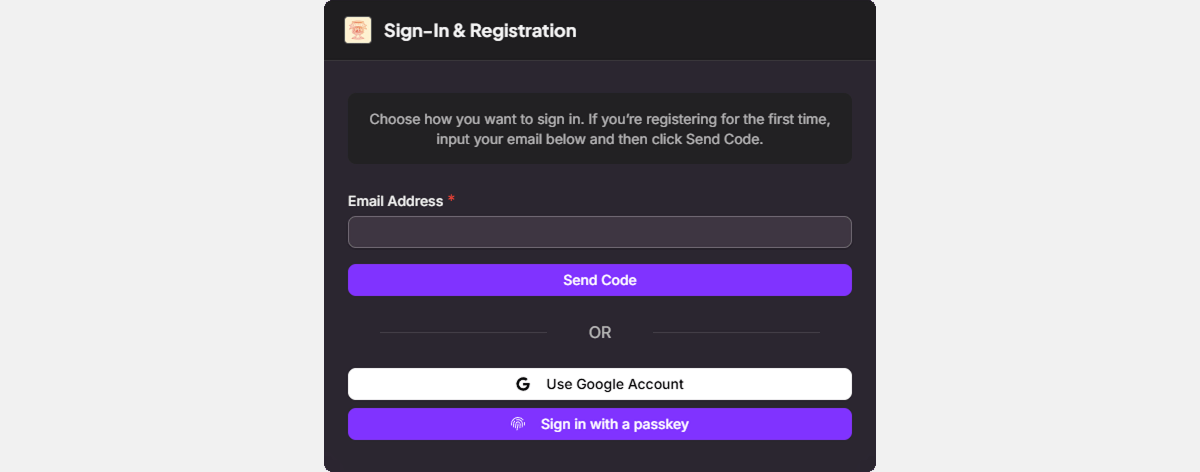
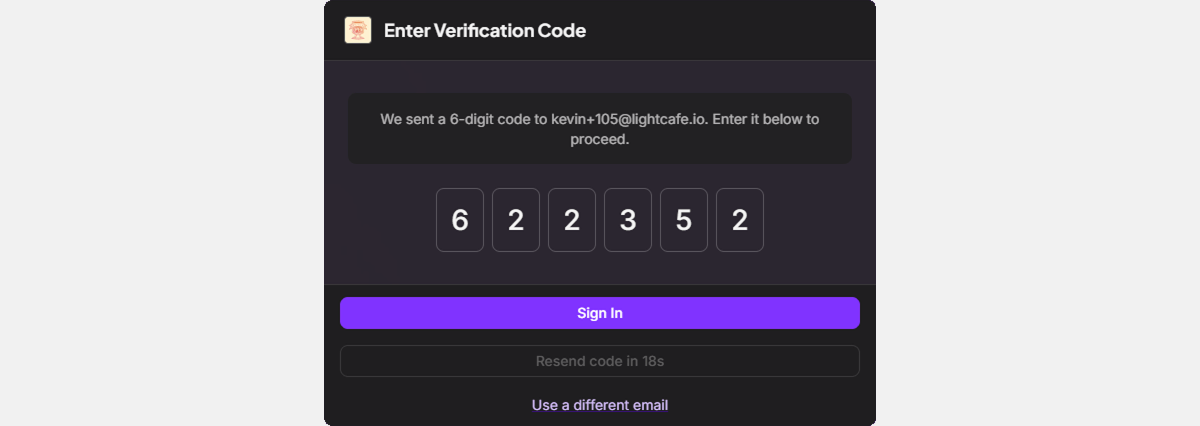
1.2 Enter your sign-in code
Next, you will be asked for a 6-character code made of letters and numbers. Check the inbox of the email you just used for a message with the code, then paste it in. Click Sign In when you are done.
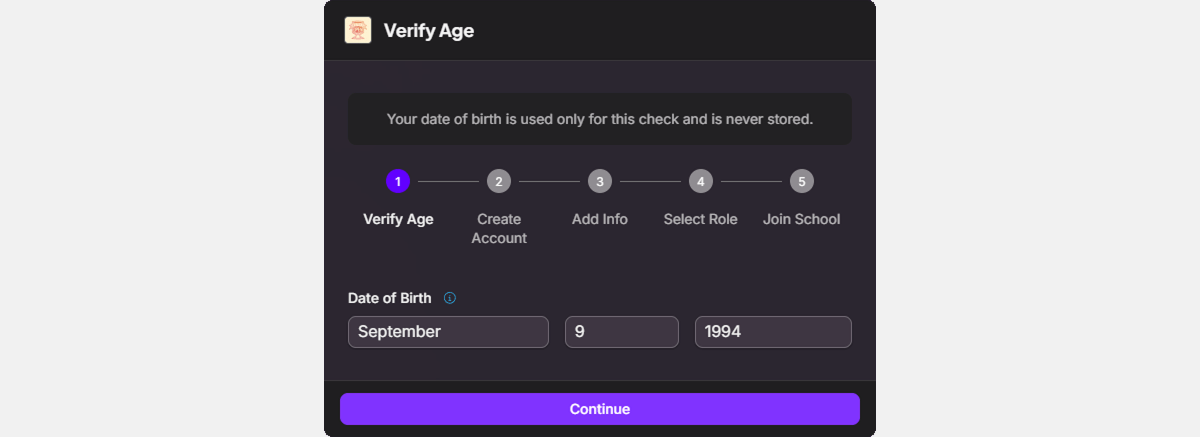
1.3 Confirm your birthday
The Verify Age step asks for your date of birth. Enter a month, day, and year, then click Continue. Your date of birth is used only for this check and is never stored.
Our platform requires a minimum age of 13. Add a student under 13 to your team as a Managed Member instead. See the Managed Member Guide.
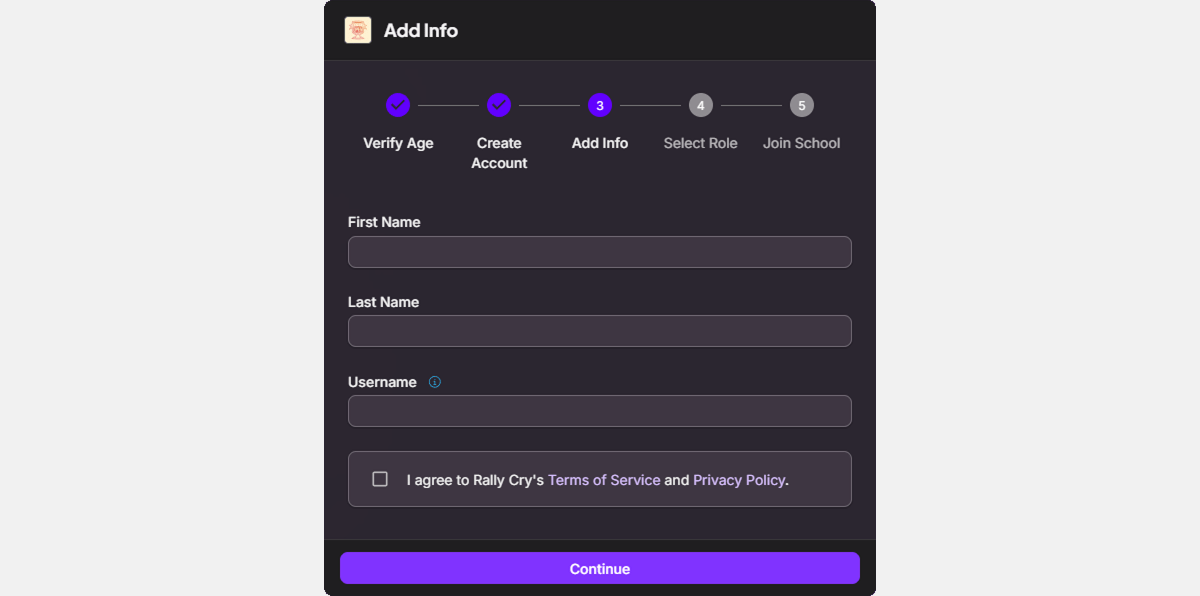
1.4 Enter your name and username
You will be asked for a first name, last name, and username. Fill those in, check the Terms of Service and Privacy Policy agreement, then click Continue. Your username is permanent.
Coaches at your school and league staff can see your real name. Other members see only your username unless you choose to share your name.
2. Joining a school
With your account created, the platform connects you to your school. You either find it in our database or register it, set two visibility preferences, and verify that you belong there. Then you ask for coach access from your school's page, in step 2.7.
2.1 Option A: Search the school database
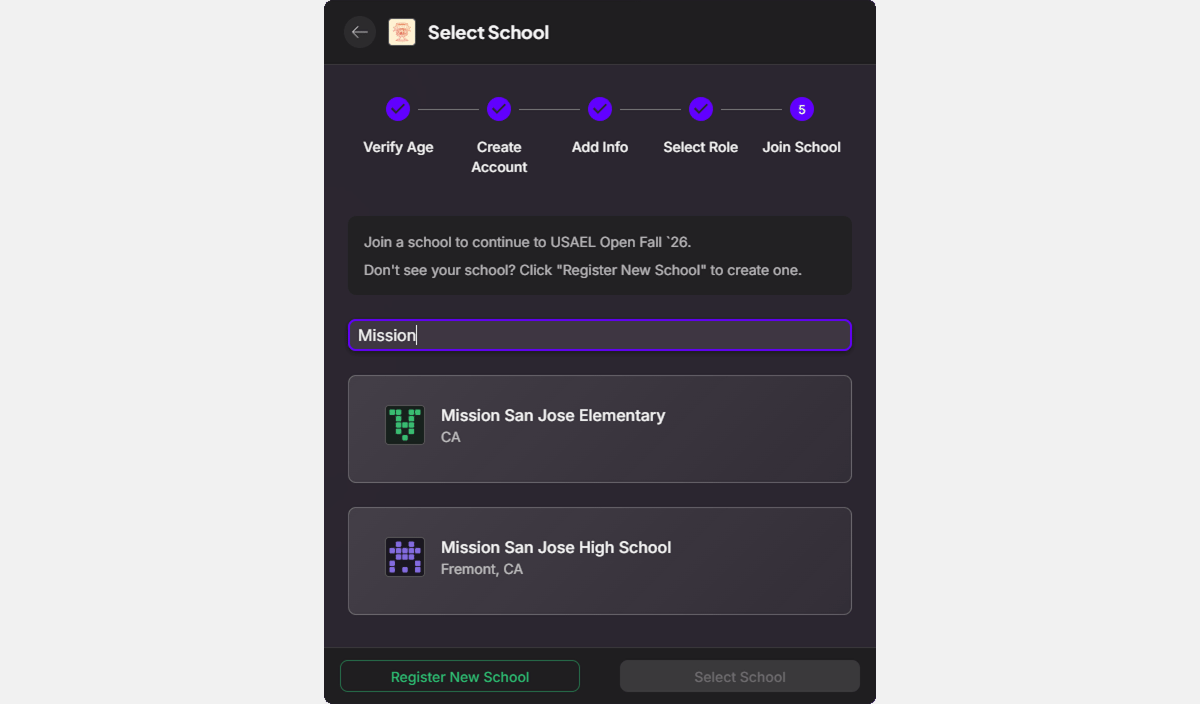
You will be asked to search for your school or register a new one. Always search first, since we may already have your school in our system.
Type your school's name in the search bar.
If you find it, select it and click Continue.
Skip ahead to step 2.3.
If you can't find your school, continue with Option B.
If a school that uses your email domain already exists, it is shown with a Domain Match label. You can still search for a different school.
Search by the school's full name. "Albany High School" finds it; "AHS" usually does not.
2.2 Option B: Register a new school
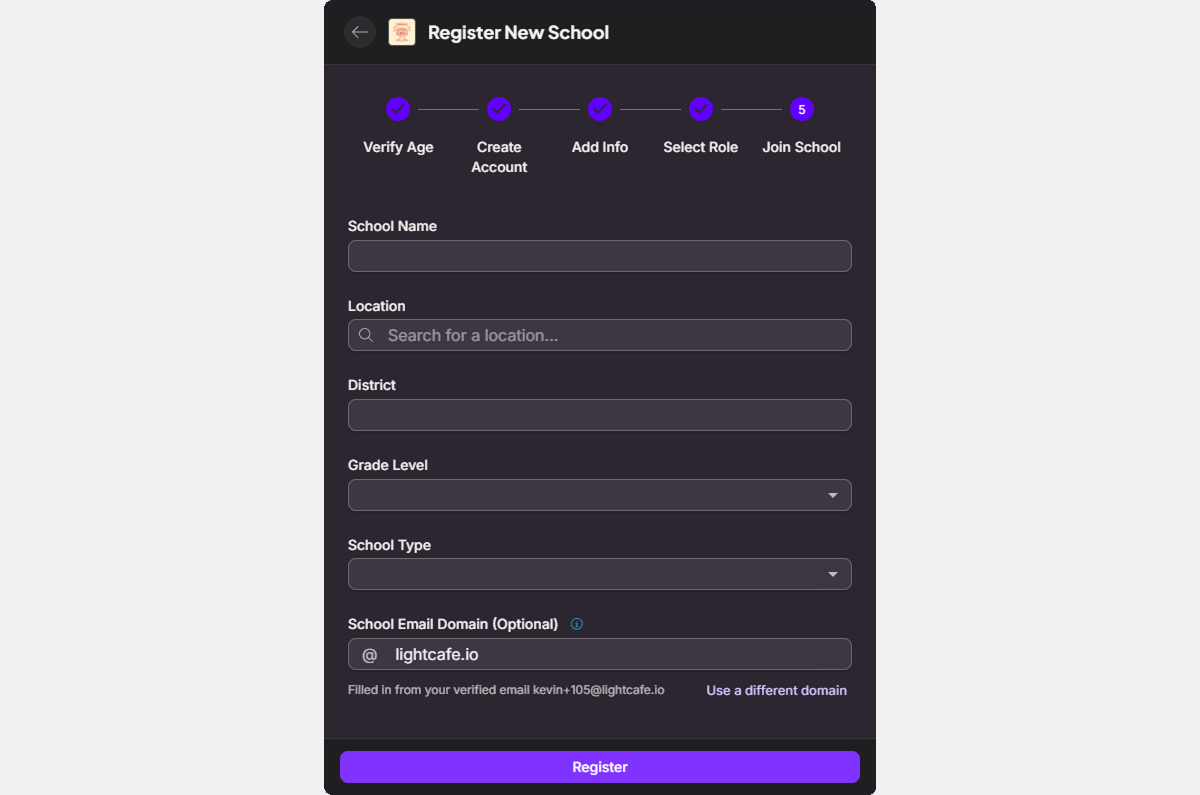
If your school is not in our database, click Register New School. You will be asked to fill in some school information.
Start by typing the school name to see if it exists in the NCES database. If it does, select it and most of the form will autocomplete. You can filter results by State.
Fill in any information the NCES record didn't include.
Optionally, fill in Staff Email Domain and Player Email Domain (your league may use its own word for players, such as Student). An address on the staff domain lets a coach skip the upload when they request staff access, and an address on the player domain lets students join at once. Leave a field empty if your school has no such domain. You can change both later under Settings, then Member Access.
When you are done, click Register.
Use official names rather than abbreviations. For example, "Albany High School" instead of "Albany HS". That is how other coaches at your school will find it, and how your league will recognize it.
Registering a school always asks you to upload proof that you work there, even if you verify a school email. Once league staff approve it, you run the school: a crown shows beside your name on its Members tab, and you can make other members coaches or school admins. Other staff at your school can then find it by search, so you only do this once per school.
2.3 Set your visibility preferences
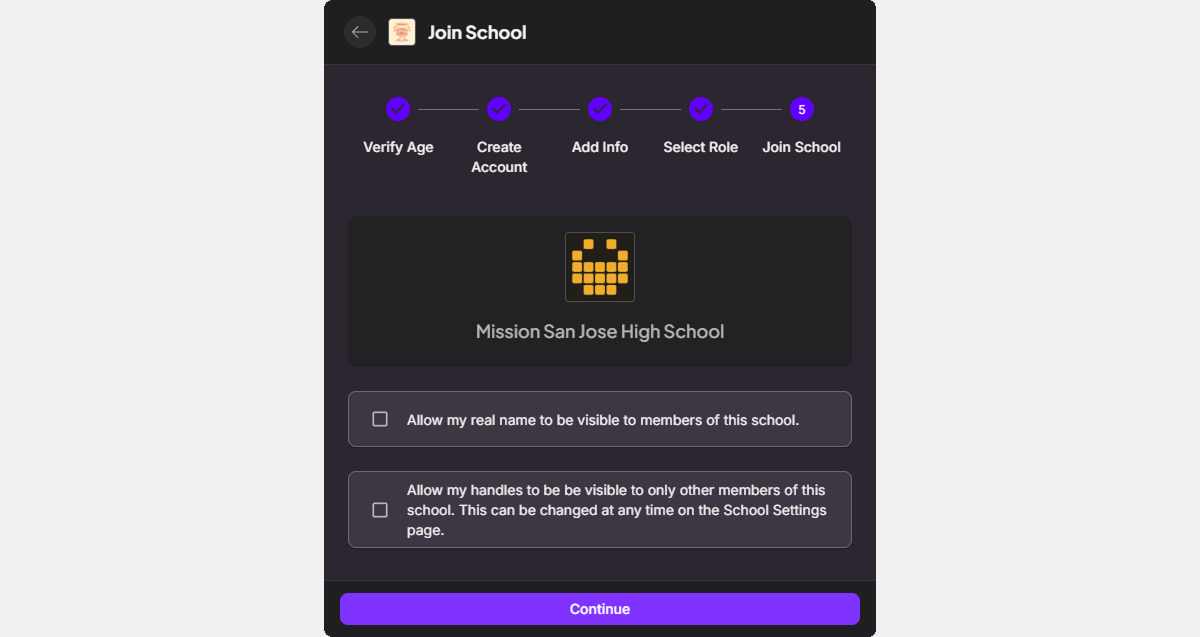
Next, you will be asked for real name and handle visibility preferences:
Whether members of your school can see your real name.
Whether members of your school can see your game handles.
A box that starts with "Allow" is optional. A box that starts with "I acknowledge" means your school always shows that detail, and you must tick it to continue. When you are done, click Continue.
2.4 Verification options
Leagues need to know that you belong at the school. The Select Verification Method step appears when your school lists an email domain. If it does, you can verify in one of two ways:
Email Verification: confirm your school email address, described in step 2.5.
Submit Application: send the school an application, described in step 2.6.
Select the option that fits best, then click Continue. If the step does not appear, the platform sends you straight to the application in step 2.6.
If the email option is available, we recommend it. It adds you to your school in minutes, while an application waits for someone to review it.
Either way, this step makes you a member of the school. You ask for coach access next, in step 2.7. If you registered a new school in step 2.2, you also upload proof that you work there in step 2.6, even after verifying your email.
2.5 Verification by faculty email
If you chose Email Verification, you will be asked for your school email address.
Enter the email address your school issued you. It must use the school's registered domain.
Click Verify Email. We send a 6-character code to that address.
Type the code, then click Verify email. You join your school right away, and you can ask for coach access in step 2.7.
As always, check your spam folder if you can't find the email, or consult the IT & Whitelisting Guide.
2.6 Verification by application
If you chose Submit Application, or the platform sent you straight here, the Application step asks for what your school needs: Written Answers, a File Upload, or both.
For Written Answers, answer the questions shown on the step.
For a File Upload, add proof that you work at the school, such as a teacher or staff ID, an employment document, or a picture of an email or letter that shows you are a coach. Files can be PDF, DOCX, JPG, PNG, or WEBP.
When you are done, click Submit Application.
Staff review your application, usually within 72 hours, and the Application Submitted screen shows until they do. We do not keep these file uploads.
2.7 Request staff access
Joining makes you a member of your school. To become a coach there, ask for staff access:
Open your school's page and select Request Staff Access at the top.
If your email is on the school's staff email list, there is nothing to upload. Otherwise, the request asks for proof that you work at the school, as in step 2.6.
Select Send Request.
A Staff Access Pending Review banner shows on your school page until a person approves you: a coach already at your school, or league staff. We email you when they decide.
Skip this step if you registered a new school in step 2.2. Your registration already asks for staff access, and its approval puts you in charge of the school.
Request Staff Access asks for the Coach role. A coach can create teams, invite students, add Managed Members, register teams for competitions, edit the school page, and affiliate the school with other leagues. To run the whole program as a school admin, ask the member with the crown on your school's Members tab, or league staff, to change your role.
2.8 You're all done
Once your staff access is approved, you are a coach at your school. If you registered the school, you run it. From here you can create teams, invite students, and register for competitions.
If your school also competes in another league, such as the USAEL Open, the Multi-League Affiliation Guide explains how to affiliate it with that league.
2.9 Decide who can join
Once you are a coach, open your school's Settings, then Member Access. In a K-12 league, the Members join rule is always Pass One Check: a student with a verified address on the Members group's Email Domains joins at once, and anyone else sends an application that you approve in the Approval Queue. The Who Can Join panel on that page spells out the path for each role. To skip all of that for your own students, make an Invite Link with Skip Verification from Add People on the Members tab; it works for 48 hours. The School Settings & Privacy Guide covers every setting on that page.
Next guide: the Team Creation Guide walks through building your first team and inviting your players.