
This guide is for coaches and school admins whose school is eligible for more than one league on the platform, for example a state league and the USAEL Open. Affiliating adds your whole school, its teams, and its players to the other league. You do it once per league. If you are new to the platform, start with the Coach Registration Guide. To enter the new league's competitions once you are affiliated, see the Team Creation Guide.
1. What Is the USAEL Open?
The USAEL Open is our free-to-enter national league, with 13 game titles and $20,000 in prizes. We operate it independently to give our state league partners an accessible national playground.
The Open uses a dynamic scheduling system: you enter the specific times your teams are available, and league admins pair you only with teams that share at least 60 minutes of that time. See the Availability Calendar Guide. The Open also runs more casual titles, with divisions for elementary, middle and high school.
If you coach in one of our state leagues, you use the same coach account, the same school, the same teams, and the same students in both leagues, because they are all hosted on the same platform. The first time you sign in on the Open's site, an Affiliate Your School? step offers to affiliate the school you already run. Select your school, then select the Affiliate With button. Choose Join Separately Instead only if you represent a different school, and never create a second copy of your school. If you missed that step, the rest of this guide shows how to affiliate from your home league.
2. Before You Affiliate
2.1 What Affiliation Does
Your school, its coaches, its teams, and its students all become part of the new league. You do not re-register anyone.
Your school stays in its home league. Nothing is moved or removed.
The first time each person visits the new league's site, they sign in with their existing account. Their school and team memberships are already there.
Teams register for the new league's competitions the same way they do at home. See the Team Creation Guide.
Affiliating brings your whole school with you, including every coach, team, and student. Tell the other coaches at your school before you affiliate.
2.2 Who Can Do It
Only a coach or school admin of the school can affiliate it. Students and parents cannot. If you do not see the option, ask a coach or school admin at your school to make the request.
2.3 Which Leagues You Can Affiliate With
You only see leagues your school is eligible for. Eligibility is set between the leagues, not by you. For most schools, the USAEL Open or your state league will be the only leagues you can affiliate with.
3. Find the League
3.1 Open the Competitions Tab
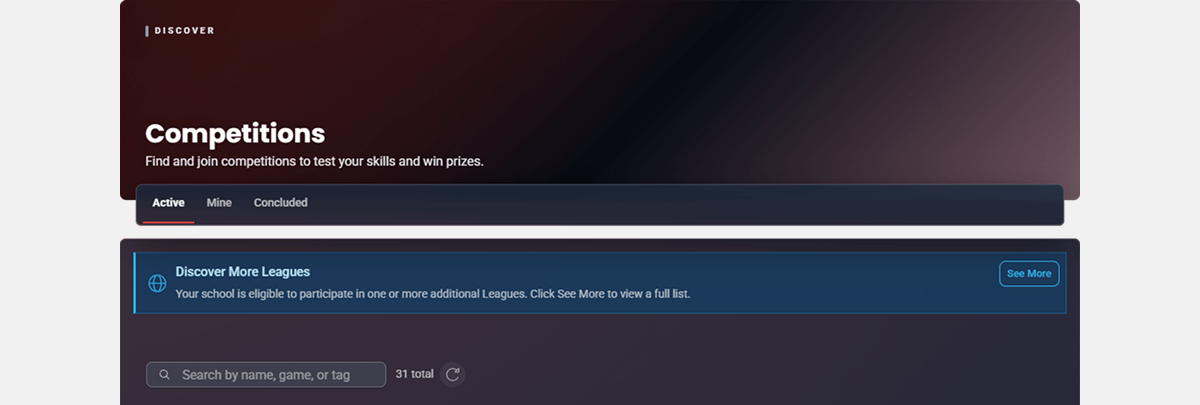
From your home league's homepage, open the Competitions tab, or open your school's page. If your school is eligible for another league, a banner reads Discover More Leagues with the note that your school is eligible to participate in one or more additional leagues. Click See More.
The banner only displays if you are a school coach or admin and your school is eligible for at least one other league. No banner means there is nothing to affiliate with right now.
3.2 Pick the League
The Leagues page lists the other leagues your school can affiliate with. Each league's card shows where your school stands with it:
Affiliate Your School: you can request affiliation.
Already Affiliated: your school is already part of this league.
Request Pending: you have a request waiting on that league's admins.
Click Affiliate Your School on the league's card, or click the card itself. Both open the same Affiliate With Another League window.

4. Affiliate Your School
The affiliation window has up to three steps.
4.1 Choose Your School
The first step lists the schools you can affiliate, one card each, showing the school's name, the league it is currently part of, and your seat at that school. Select the school. If you coach at more than one eligible school, you can select several and affiliate them in one request. One school starts out selected, and with only one eligible school no list appears.
4.2 Read the Admission Notice
Under the list, a notice tells you what will happen when you submit:
A green notice means the league admits schools automatically, so the affiliation takes effect right away.
A yellow notice means the league reviews affiliation requests, so yours joins an approvals queue.
Some leagues review every request even when your school's details match their criteria, for example a paid-membership league. The notice is accurate for your school, so trust it over what other coaches have seen.
4.3 Acknowledge the League's Disclosure
If the league asks members to confirm something, such as membership terms or a code of conduct, click Next Step on the first screen to reach the Disclosure step. Read the statements, tick the box that starts "I have read the disclosure", and click Affiliate With League to submit. Leagues that ask for nothing skip this step.
4.4 Confirm
The top of the first screen names the league and your school in a sentence that starts "You're asking". If the league has no Disclosure step, click Affiliate With League there to submit.
5. After You Submit
5.1 Read the Outcome
The window's title shows the result: Affiliation Success when the affiliation is live, or Affiliation Pending when the league's admins need to approve it. If you affiliated several schools and they landed differently, each school shows one of these:
Affiliated: the affiliation is live.
Pending Review: the league's admins need to approve it.
Not Submitted: something stopped the request. Try again, and contact the league if it repeats.
5.2 If Your School Is Affiliated
Click Visit Now to open the new league's site and sign in. Your school, its teams, and its members are already there. You can register teams for that league's competitions right away.
5.3 If Your Request Is Pending
The league's admins review it. Only one request per school can be pending with a league at a time. Until they decide, the league's card on the Leagues page shows Request Pending. Your school's Settings page lists the league under Organizations as Pending approval. A request sent from the sign-up step shows Request Sent. Do not create a second school while you wait. If a request is denied, you can submit it again after talking to the league.
5.4 Leaving a League
An affiliation can be removed by the league's admins. A coach or school admin can also open the school's Settings, find the league under Organizations, and click Leave. It takes effect at once, with no confirmation. Leaving a league does not affect your home league, your teams, or your members.