
This guide is for verified coaches. It walks through your first setup: creating a team, adding your players, and registering the team for a competition. If you are not yet a verified coach, start with the Coach Registration Guide.
1. Teams and Entries
Two words on the platform sound alike but mean different things. Knowing the difference makes every step below easier.
A team is your school's group of students for one game, such as "Lincoln Rocket League". You create it once, and it stays on the platform season after season.
An entry is one team's sign-up for one competition. You never create an entry by hand. Registering your team for a competition creates it.
Each entry has its own roster: the players you pick from your team for that competition. Adding a student to your team does not sign them up for anything. You decide who plays when you register.
1.1 How Many Teams to Make
Make one team for each group that plays together. Most schools make one team per game. If you run a Varsity and a JV squad in the same game, make a team for each.
Keep the same team every season. Next season, register the same team again. Each registration creates a new entry, and the team keeps its members and match history.
Solo games still need a team. For a game where students compete on their own, make one team for that game and add every student who plays it. When you register, each student gets their own entry (see 4.4).
Related guide: Platform Terms explains teams and entries in more detail and answers common roster questions.
2. Create Your Team
2.1 Open the Teams Page
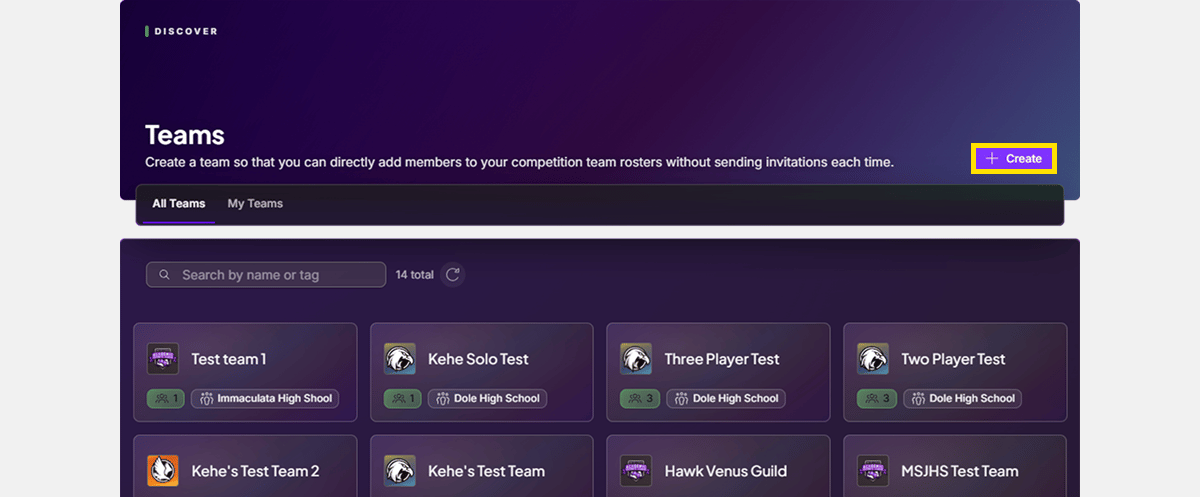
From the homepage, find the navigation bar on the left and click Teams.
From the Teams page, click the Create button in the top-right.
2.2 Create a Team
In the Create Team window, enter a Team Name.
Under Representing School, select the school the team plays for. You should only see one school unless you coach at more than one.
Click Submit.
Every entry uses its team's name, so name the team for the squad rather than the season. If you run several teams, put the game and level in the name, for example "Lincoln Rocket League Varsity".

2.3 Get to Know the Team Page
After you submit, you land on your new team page. The header has a Settings menu with the team's settings, its availability preference, your own preferences and this guide. Below it are three sections:
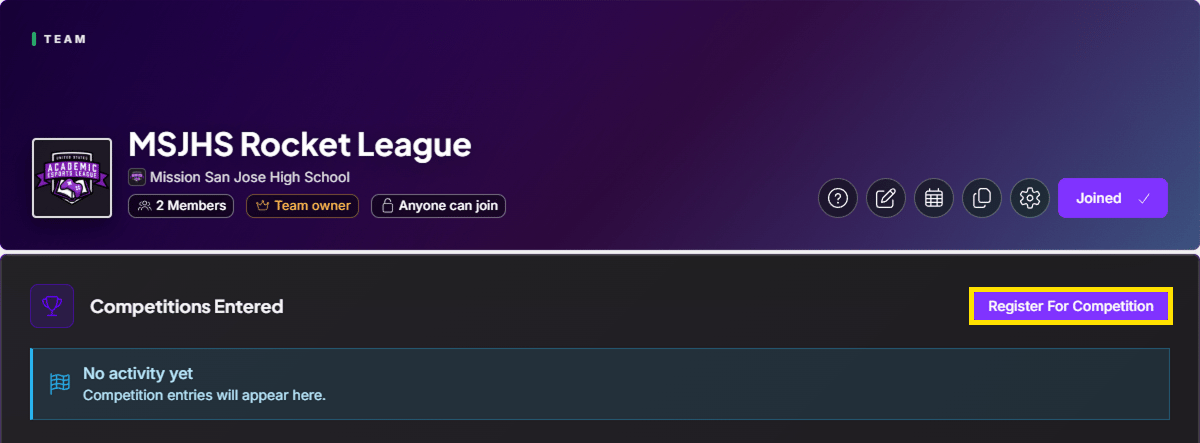
Competitions Entered lists the team's entries, one for each competition. The Register For Competition button is here.
Team Roster lists everyone on the team with their role.
Requests & Invites is where you add people: Invite via Search, Invite Link and Create a Managed Member. Only people who manage the team see this section.
To remove someone from the team, open the menu on their row under Team Roster and choose Remove From Team. The box in the confirmation is ticked by default and also takes them off the team's competition entries.
3. Add Your Players
There are three ways to put a student on your team. Pick the one that fits each student. This step only adds them to the team. You choose who plays in each competition when you register (section 4).
3.1 Share an Invite Link
This is the fastest way to add students who are new to the platform.
Under Requests & Invites, click Invite Link.
On the Settings step, leave Link Expires on Never and Max Uses blank unless you want a limit. Tick Skip Verification if it is offered: students who open the link join your school and team with no check, and the link lasts 48 hours.
Click Create Link, then share it from the Share step: Copy Link, Email (each address gets its own single-use copy) or QR Code.
When a student opens it, they see who invited them and what happens when they accept, then create their account and join.
Without Skip Verification, a student who is not yet a member of your school goes through the school's join check first: an address on your school's student Email Domains, or an application you approve. Your school's Settings, then Member Access, shows the rules and every live link, with Copy Link and Revoke Link on each.
Links can expire or reach a use limit. If a student says the link no longer works, make a new one.
Related guide: the student's side of this is written out in the Student Registration Guide. Send it to your players along with the link.
3.2 Invite by Search
Use this for students who already have an account and are already members of your school.
Under Requests & Invites, click Invite via Search.
Search for each student and select them, then click Next. The search only shows members of your school. To invite someone outside it, use an invite link instead.
Next to Join as, pick the role they join the team with, usually Player.
On Review, choose how to add them: Send Invites gives each student an invite to accept, and Add Them Now puts them on the team right away, with a notification.
If your team is already registered for a competition, the wizard adds a step asking whether to put these students on that entry too. You can skip it and add them to the team only.
3.3 Add a Student Who Cannot Have an Account
Some students cannot be on the platform, because of age, school policy, or data-privacy rules. For them, create a Managed Member: a roster spot you control on their behalf.
Related guide: the Managed Member Guide covers creating, editing, and registering Managed Members, and what you do for them on match day.
4. Register for a Competition
Registering creates your team's entry in that competition. You pick which team members play in it, and everyone you leave off stays on your team.
4.1 Start Registration
In Competitions Entered on the team page, click Register For Competition.
You can also start from the competition page. Click Register, then pick your team on the Choose a Team to Enter step (Choose a Team in a solo competition). Both paths open the same Finalize Your Entry window.
4.2 Pick the Competition
In the Choose Competition window, select the competition, then click Continue. Only competitions that are open for registration are listed.

4.3 Choose Who Plays
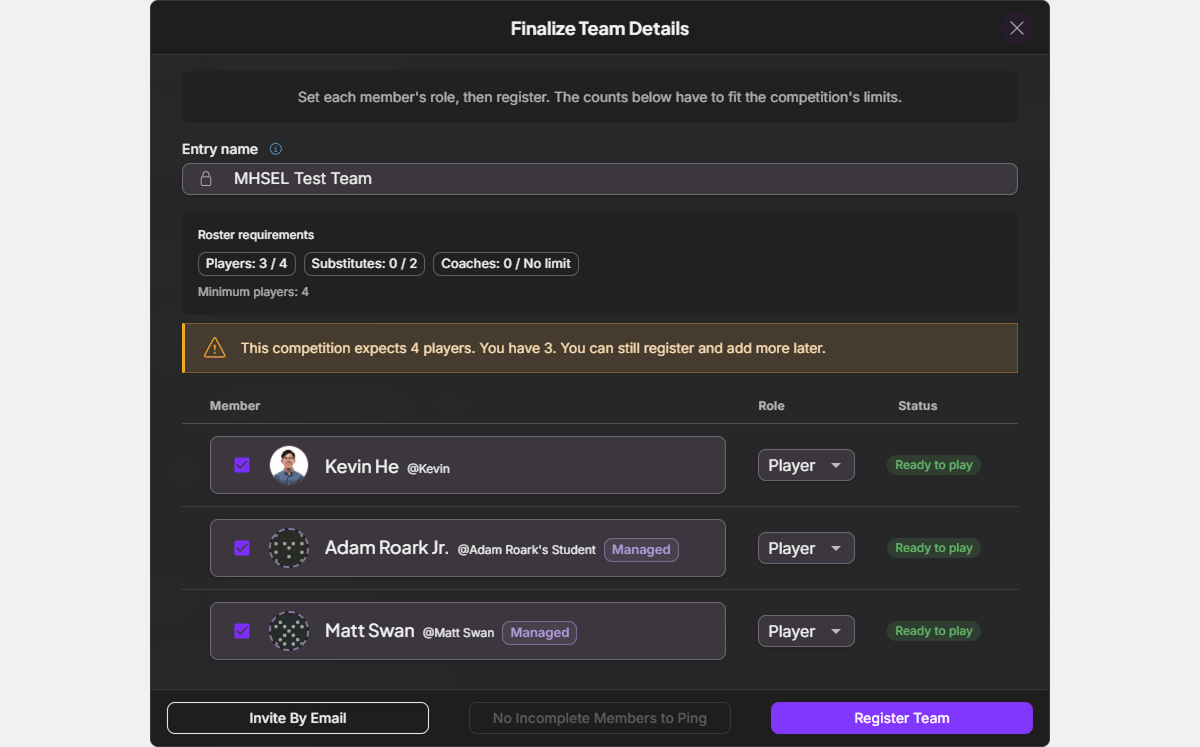
The Finalize Your Entry window lists every member of your team.
Everyone starts checked. Uncheck anyone who is not playing in this competition.
Set each person's Role for this entry: Player, Substitute, or Coach. Check that your own row says Coach, unless you are playing.
Compare the counts under Roster requirements with the competition's limits. You cannot register while a count is over its limit, or while a player already plays on another entry in this competition. Take that player off, or set them to Coach. If you are under the minimum, you can still register and add players later.
Check the Status column. Ready to play means that person is set. Anything else, such as a missing game handle, must be fixed before they can play, though you can still register them. Ping Incomplete Members sends them a reminder.
Click Register Entry. This creates your entry.
The entry takes your team's name, shown under Entry name. To change it, rename the team.
Roles you set here apply to this entry only. The roles on your team's Members list do not change.
4.4 Solo Competitions
In a solo competition, the same window registers each student on their own.
Every member set to Player gets their own entry.
Every member set to Coach is added to all of those entries.
Your own row keeps your team role, so a coach starts as Coach. Change it to Player only if you are competing.
Students who already play on another entry in this competition, or who are missing a game handle, start unchecked.
The Registration summary at the bottom shows how many entries will be created. The register button counts the players, for example Register 12 Players.
4.5 After You Register
The entry appears under Competitions Entered on your team page and in the Entries tab of the competition page, solo competitions included.
To change who plays later, open the entry from Competitions Entered and tick or untick players in its Roster section. Unticked players move to Inactive and stay on your team. To swap one student for another on a seated entry, open the player's row in the entry roster and choose Replace Player; it moves the seat, the captain role and the entry name in one step. After the competition's roster lock, only league admins can change the entry's roster.
To take the entry out of the competition, open its … menu. Choose Delete Entry before roster lock and before it has bracket matches, or Withdraw Entry after, which keeps its matches and results. Only league staff can reinstate a withdrawn entry. Platform Terms explains both.
From here on, watch for:
Queue windows and match times, which follow your league's rulebook. The Match Week Guide walks through the weekly cycle.
Anything a player still needs to complete before match day.
Managed Members on the entry, whose game handles you enter yourself (see the Game Handles Guide).
Related guide: your league's rulebook in the library covers formats, match days, and queue rules for each game.