
This guide is for the person running a LAN event on the League Platform: the host coach or league staffer who sits at the admin table. It covers everything from the day registration opens to the moment the bracket is finalized. Your league builds the competition page and gives you a Moderator seat before registration opens; this guide starts there.
Your league's rulebook and LAN guidelines are the final word on eligibility, fees, seeding and tiebreakers. This guide only covers the platform.
1. Before You Start
1.1 What the league has already done
Before registration opens, league staff have:
Built the competition page for each title at your event (one page per title) and set its rules, player minimums and maximums, and the link to the league's registration form.
Created a draft bracket for each title with the format the league wants (for example Double Elimination, Best of 5, or a round robin), hidden from players until you publish it.
Seated you as a Moderator on each of those competitions.
1.2 What your Moderator seat lets you do
A Moderator seat covers everything on this page: adding and dropping entries, adding players who have no account, setting up and publishing the bracket, entering results, and messaging entries. It applies only to the competitions you were seated on. Your seat shows on the competition's Overview, under Competition Admins.
Warning: do not change the competition's Settings or use Edit Bracket. Your seat can open them, but the league owns the rules, format and eligibility. If something there looks wrong, message league staff instead of changing it. The same goes for Delete Entry on an entry and Delete on a bracket.
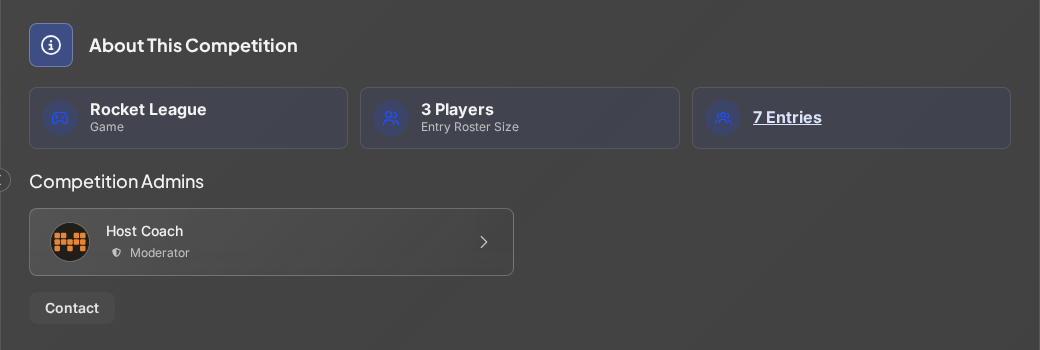
1.3 Where things are
Every competition page has the same tabs: Overview, Schedule, Entries, Bracket, Matches, Scrims and Stats. As staff you also see Administration. You'll use three of them:
Entries: every registered team, with its issues and bulk actions.
Bracket: the draft bracket, and later the live one. Players see this tab only after you publish the bracket.
Matches: every match in the competition, which is the fastest way to find one on event day.
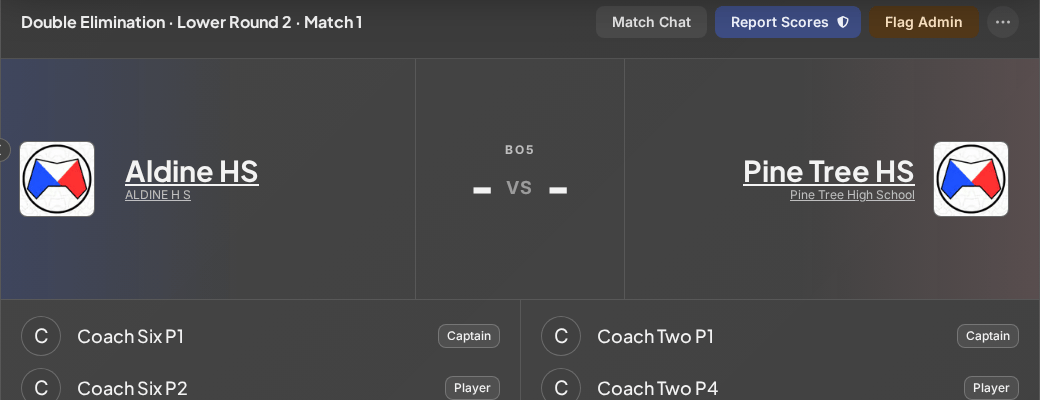
Each match has its own page. Its menu (the ... button next to Flag Admin) holds Moderator Actions, where you enter results and change who plays, and Reset Match.
2. Registration Period
2.1 Watch entries come in
Open the Entries tab. Each row is one entry: a team the coach or captain registered under its online-league team name. The Issues column shows anything a team still has to fix, such as a player without the game handle this title requires or a roster below the minimum. Hover the number to read the issue.
Use the Issues filter to see only entries with problems, and View Entry (the eye button at the end of the row) to see its roster.
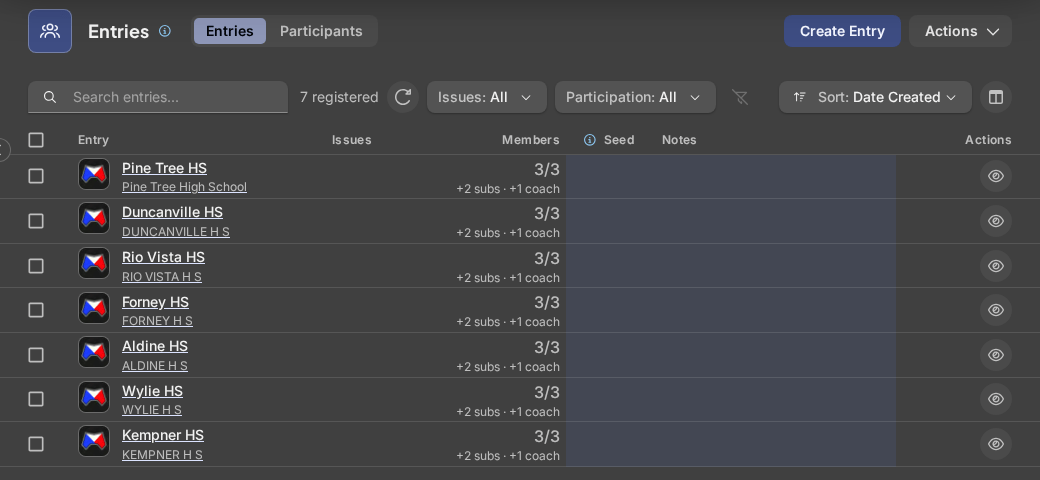
2.2 Add a team that missed registration
If a school shows up at the event without having registered, or registration has closed and the league approves a late entry:
On the Entries tab, select Create Entry.
Choose the school's existing team under Linked Team, then select Continue. Don't make a new team unless the school has none.
If the school has no team: leave Linked Team empty, type the Team Name, pick the school and, under Captain, search for the captain. If the captain has no account, type their name and pick the last row: typing Robin Hosted offers Add Robin Hosted as a New Player. Then select Continue.
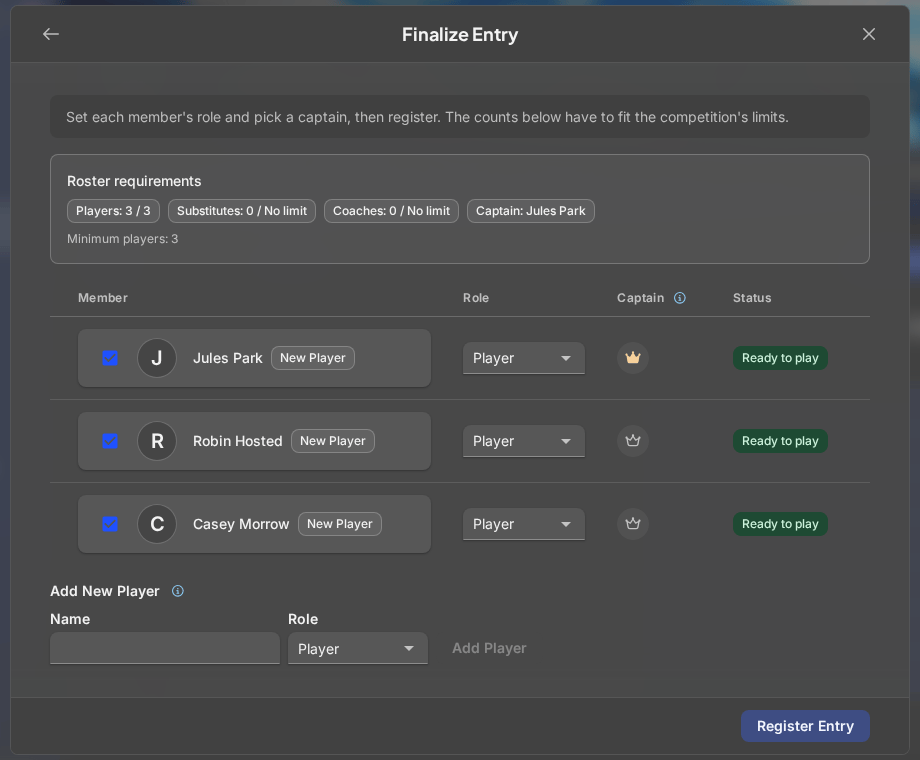
On Finalize Entry, check each member's role and pick the captain with the crown button.
For a player with no account, use Add New Player under the table: type the Name, pick the Role and select Add Player. The player joins the table with a New Player tag. Repeat for each one.
Select Register Entry.
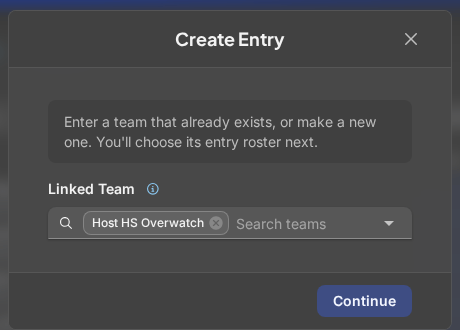
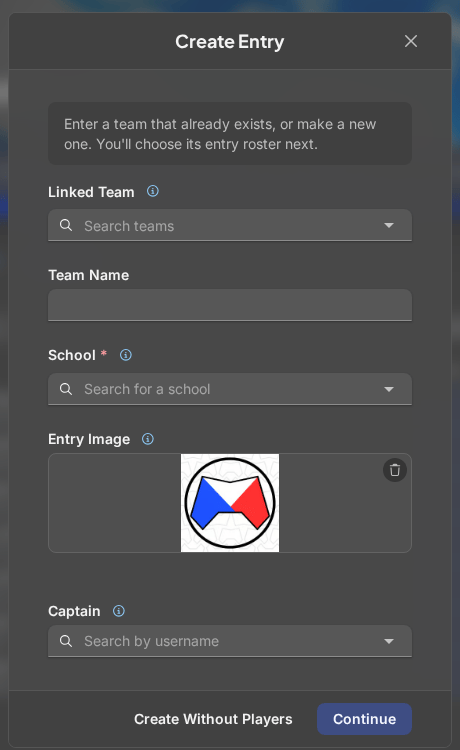
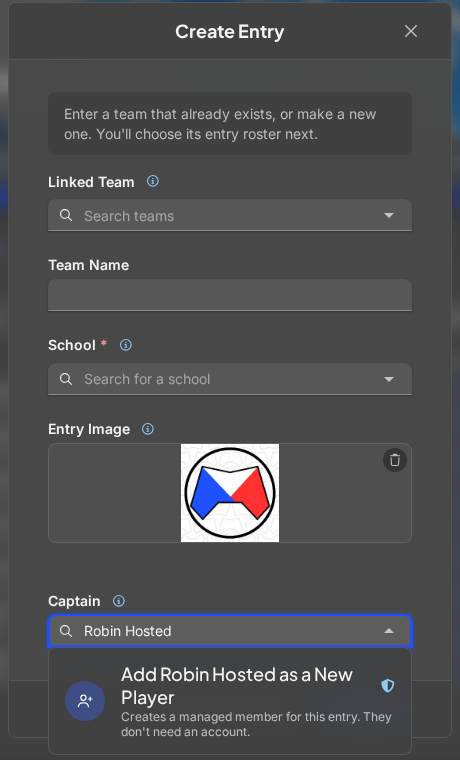
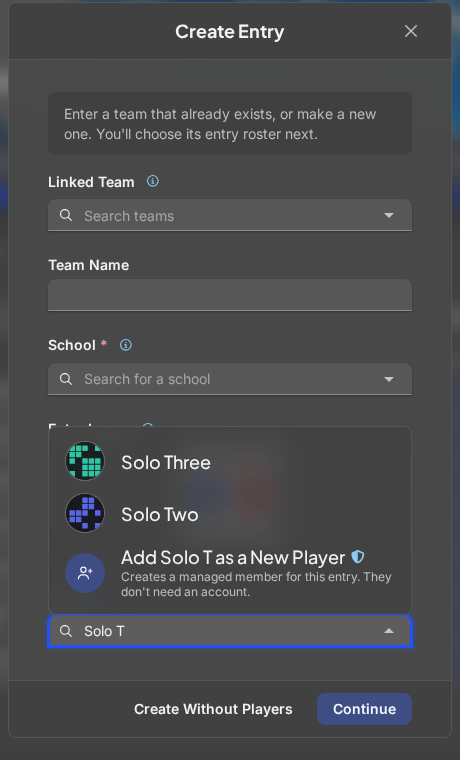
For a new team, if you don't have the players' names yet, select Create Without Players instead of Continue. The entry is created empty, and you add the players later with Invite to Entry (2.3). The button isn't there once a Linked Team is picked.
For a solo title, the field reads Player instead of Captain, the same New Player row works there, and the entry is named after the player.
If registration is closed, Create Entry shows Registration Is Closed with the note "As competition staff, you can still add this entry. The rules it skips are recorded on it." Carry on as above.
The entry appears on the Entries tab like any other.
2.3 Roster changes
The league's roster substitution rules apply, so only make a change the league has approved. To make one:
On the Entries tab, select View Entry on the entry.
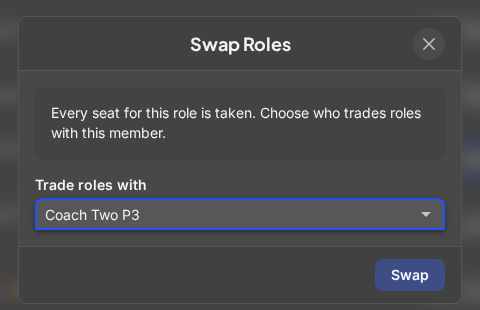
To put a substitute in for a starter (the usual change on event day): in the substitute's row, open the Role box and pick Starter. Every Starter seat is full, so Swap Roles opens. Under Trade roles with, pick the starter who sits out, then select Swap. The substitute becomes a Starter and the starter becomes the substitute. Do the same again to swap back.
Don't use Replace Player for this: it takes the player off the entry and looks for someone new, and it refuses anyone already on the entry.
Open a player's ... menu for the other changes: Remove From Entry takes them off, Replace Player gives their seat to someone new, and Make Captain makes them a captain. A removed player who's on the team moves to the team roster list below, with Add to bring them back. A player who was only on the entry is asked to confirm first and needs a new invite to come back.
To add someone new, select Invite to Entry at the top of the entry.
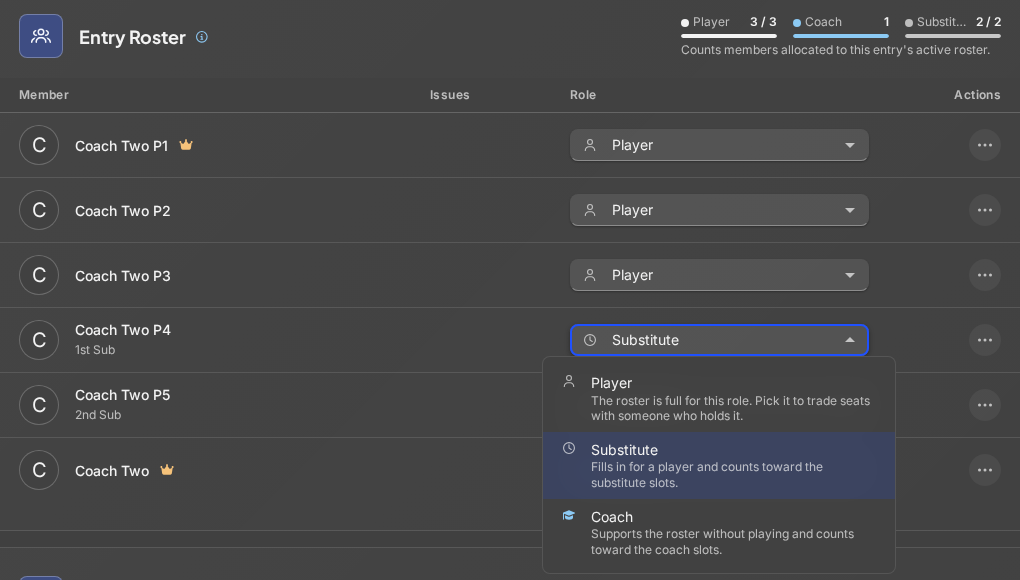
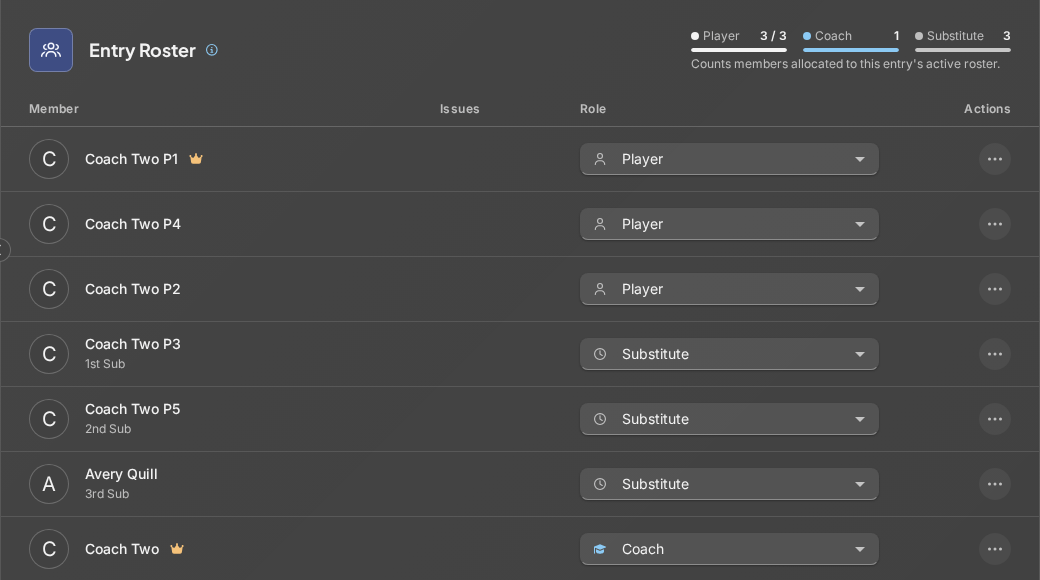
The roster counts at the top of the entry (for example Starter 3 / 3, Substitute 2 / 2) show what the competition allows. Substitutes show as 1st Sub and 2nd Sub.
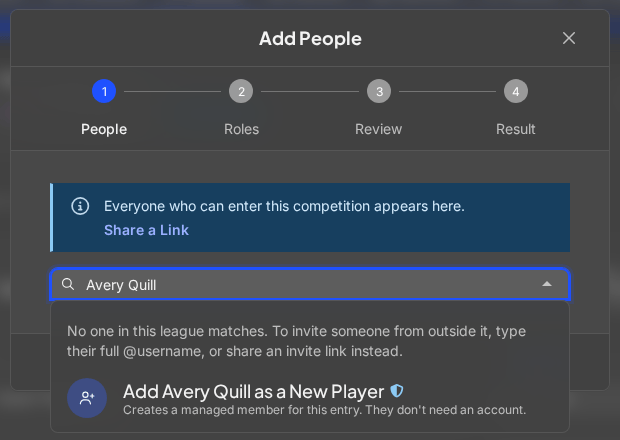
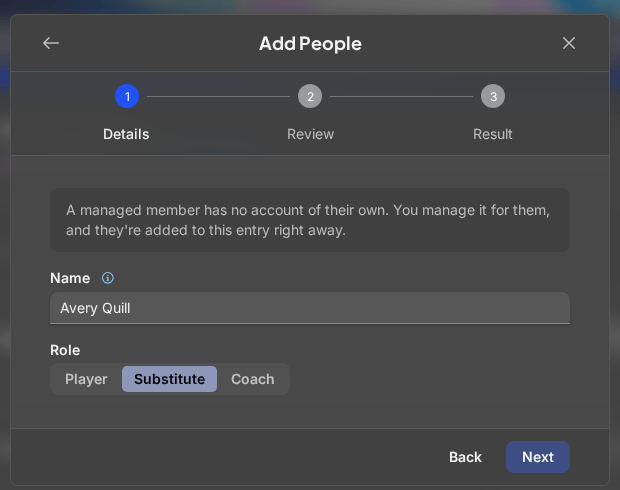
A player with no account. Select Invite to Entry at the top of the entry. In Add People, type the player's name in the search: the last row offers to add them as a new player, for example Add Avery Quill as a New Player. Pick it, set their Role, type their game handle if the title asks for one, select Next, then Add Them Now. They're added as a managed member of the school, a profile with no sign-in of its own, and count toward the roster like any player. Use the name the league asks for. If you skip the handle, you can add it later from the entry's roster.
2.4 Drop an entry
When a team tells you before the event that it can't attend:
On the Entries tab, tick the entry.
Open Bulk Actions and select Drop. It happens at once, with no confirmation. The entry keeps its place in the list, marked Dropped.
To undo it, select View Entry on the dropped entry, open its Settings menu and select Reinstate Entry.
Once the entry has matches in a published bracket, its Settings menu offers Withdraw Entry instead. Tick Also forfeit its N unplayed matches now so its opponents advance.
2.5 Message every entry
On the Entries tab, tick the entries, open Bulk Actions and choose Email.
On the Bracket tab, once the bracket is published, open Actions and choose Contact Entries. It opens Send Email for everyone in that bracket: write the subject and message, select Review and Send, then Confirm Send to N.
Use this for parking, room and start-time details the week before, and for any change on the day.
3. Event Day: Attendance
3.1 Keep track of who arrives
Teams report to the admin table when they arrive. Keep your own list as they do: the platform doesn't need a check-in, because you decide the field yourself in 3.2.
3.2 Drop the teams that didn't come
At the time the league set for bracket building:
Open the Entries tab.
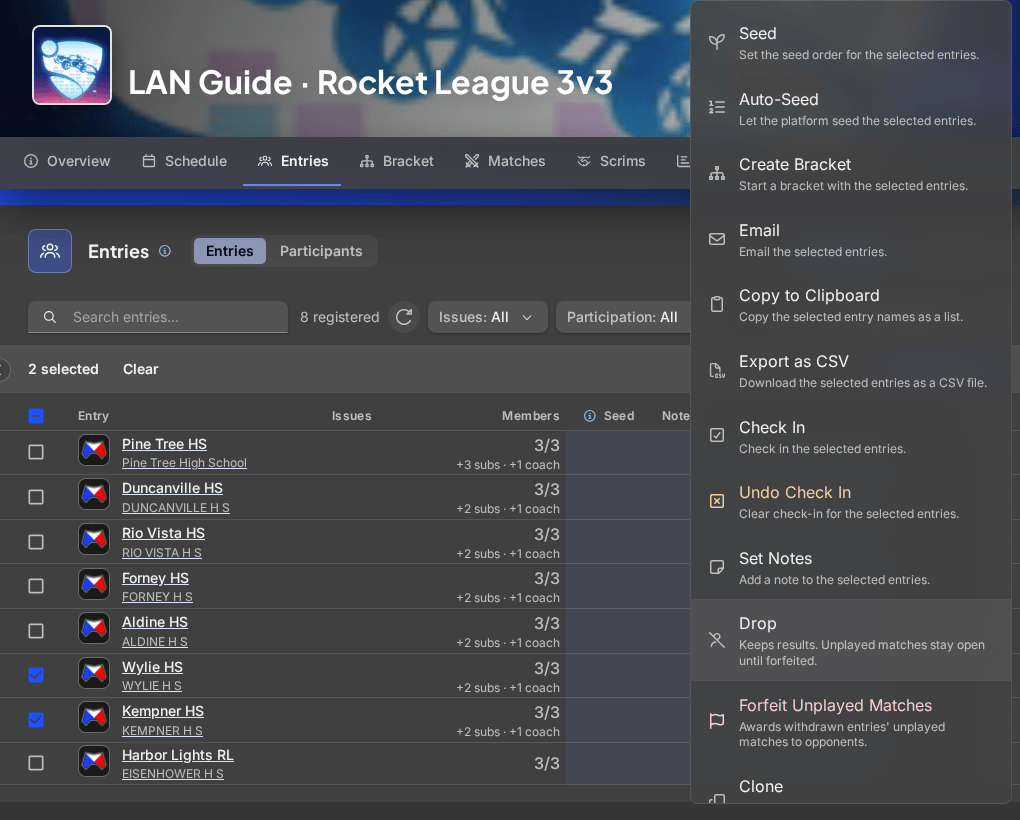
Tick each team that hasn't arrived. A bar above the table shows how many you selected.
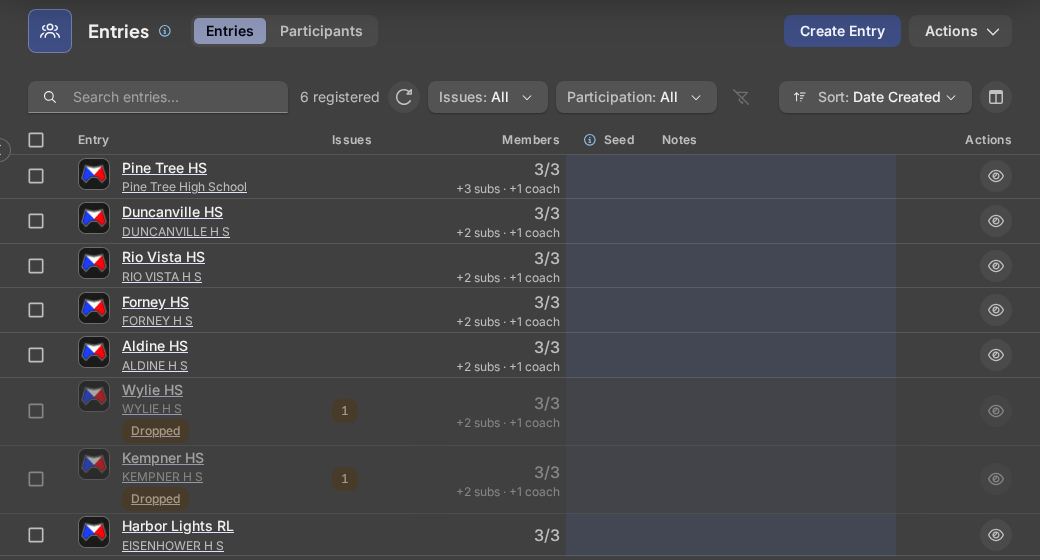
Open Bulk Actions and select Drop. It happens at once. The entries stay in the list, marked Dropped, and can't be added to the bracket.
Bulk Actions also lists Check In and Undo Check In. LAN events don't use them.
Every entry that isn't dropped goes into the bracket in 4.2, so check the list before you build it. If a dropped team turns up before you publish, select View Entry on it, open its Settings menu and select Reinstate Entry.
4. Event Day: Build the Bracket
4.1 Open the draft bracket
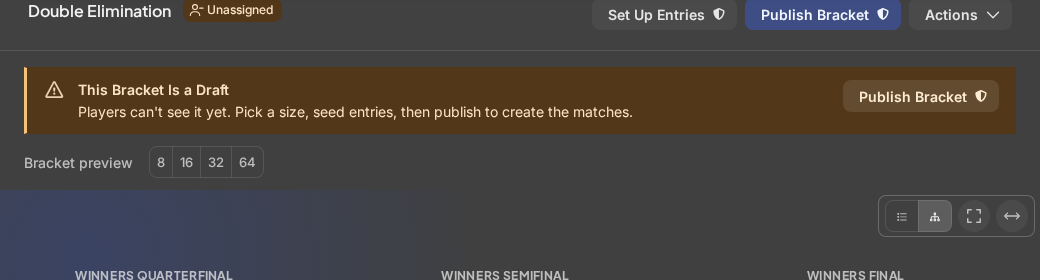
On the Bracket tab, the league's draft bracket carries a banner: This Bracket Is a Draft. Players can't see it yet.
4.2 Add the entries
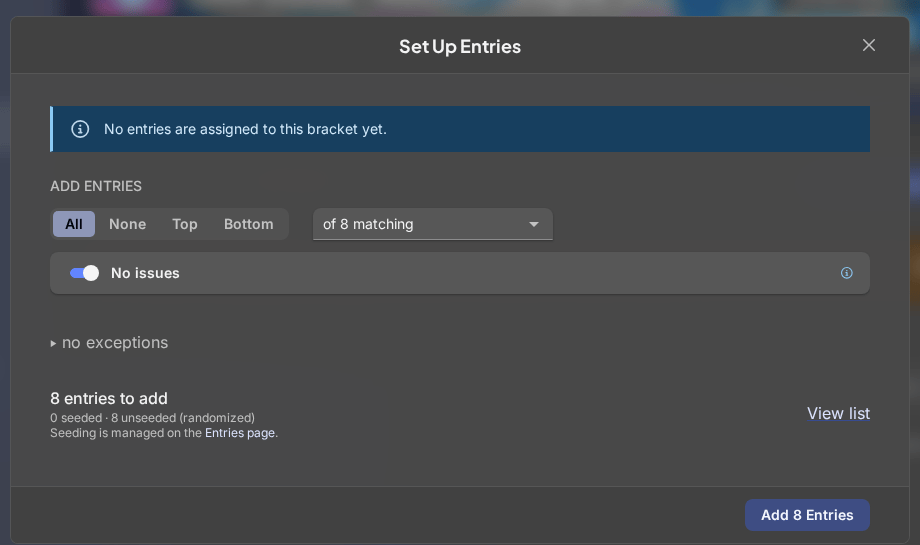
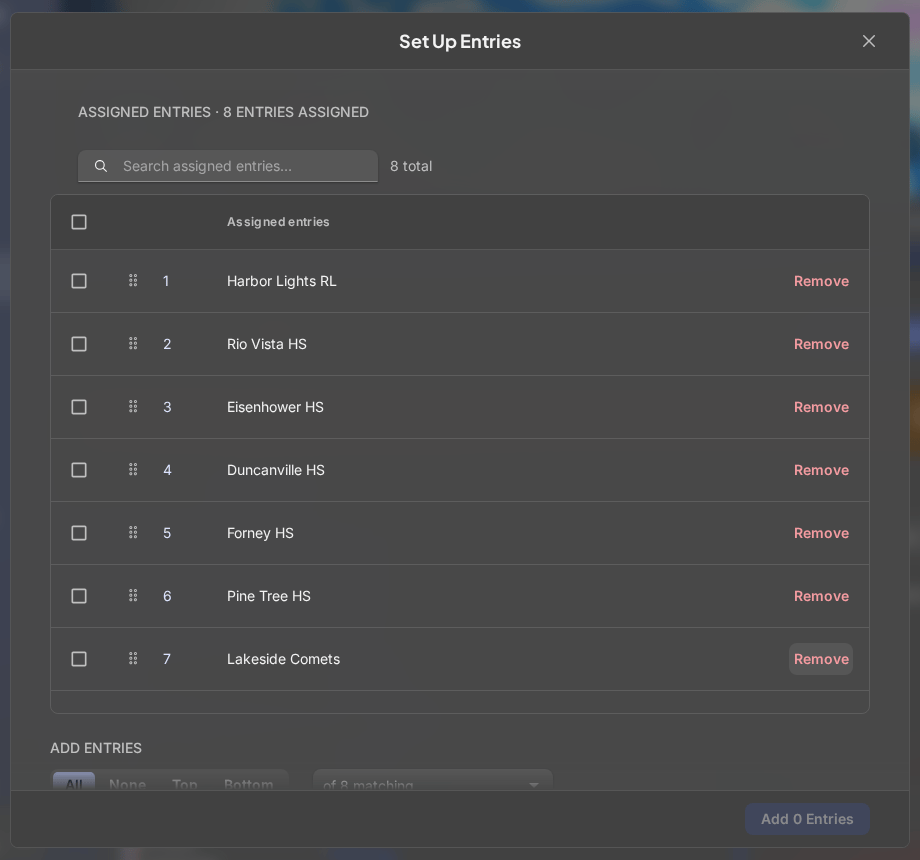
On the bracket's bar, select Set Up Entries.
Under Add entries, keep All. No issues is on by default and leaves out every entry with an open issue, a short roster included. If such an entry should play, turn No issues off. Dropped entries are never added.
Select View list to check who will be added, then select Add N Entries.
The bracket needs at least two entries. Once they're added, the Add entries counts update to show only entries still left to add.
4.3 Seed
In the same dialog, the Assigned entries list is the seed order: first in the list is seed 1. Entries you didn't seed start in a random order. Drag the handles to reorder, or select an entry's position number, pick its new place and select Save. When it's right, select Save Order, then close the dialog with the X.
If your league seeds by regular-season record, open the Entries tab first: Bulk Actions has Auto-Seed and Seed for the selected entries.
4.4 Publish
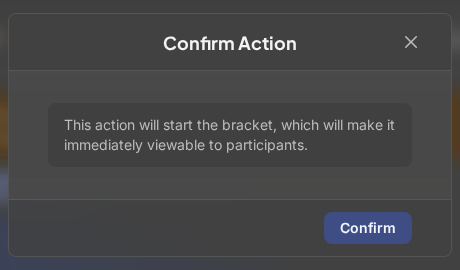
On the bracket's bar (or in the draft banner), select Publish Bracket. The confirmation says the bracket starts and becomes visible to participants at once. Select Confirm, and the matches are created. In an elimination bracket, top seeds without an opponent move on to the next round straight away.
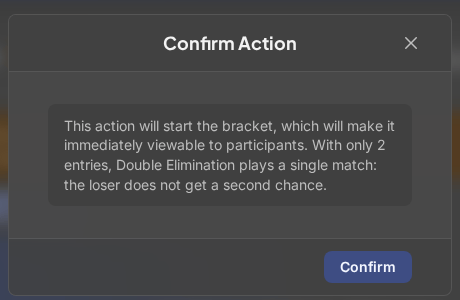
Only two entries in a Double Elimination bracket? The confirmation adds: "With only 2 entries, Double Elimination plays a single match: the loser does not get a second chance." If your league wants those two to play more than once, message league staff before you confirm.
From here on, players see their first opponent on the Bracket tab and on their match page.
If the league didn't leave you a draft bracket, you can make one: on the Entries tab, select the entries that are playing, open Bulk Actions and choose Create Bracket. It opens Set Up Brackets. Set the Name, then under Format the Bracket Type, Condition and Game Count as the league's LAN guidelines say. Under Creation, turn off Start the bracket once it is built (it is on by default and publishes at once), select Create Bracket, and continue from 4.3.
5. Event Day: Run the Matches
5.1 Find a match
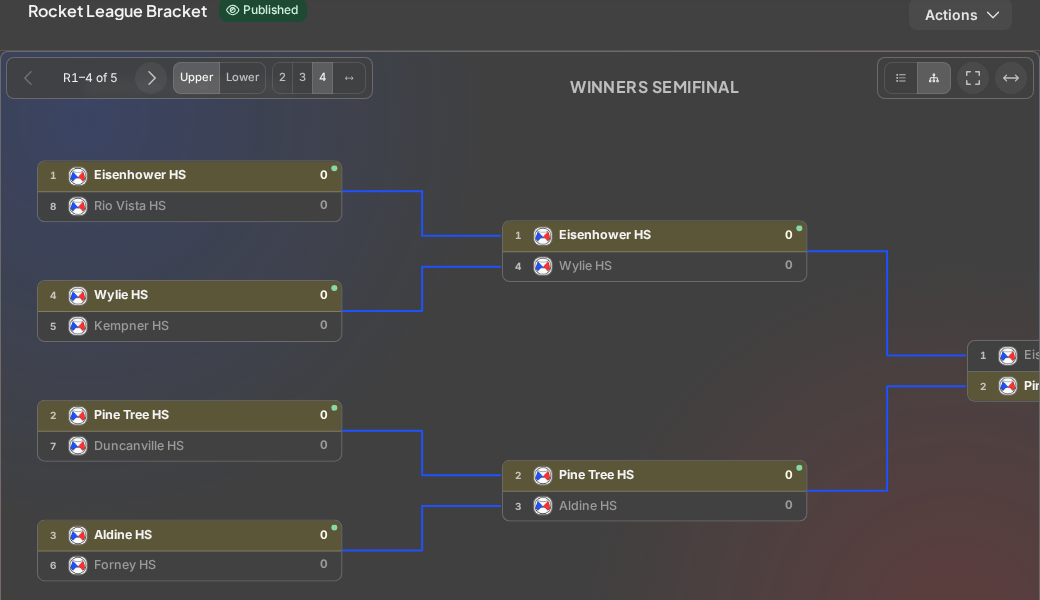
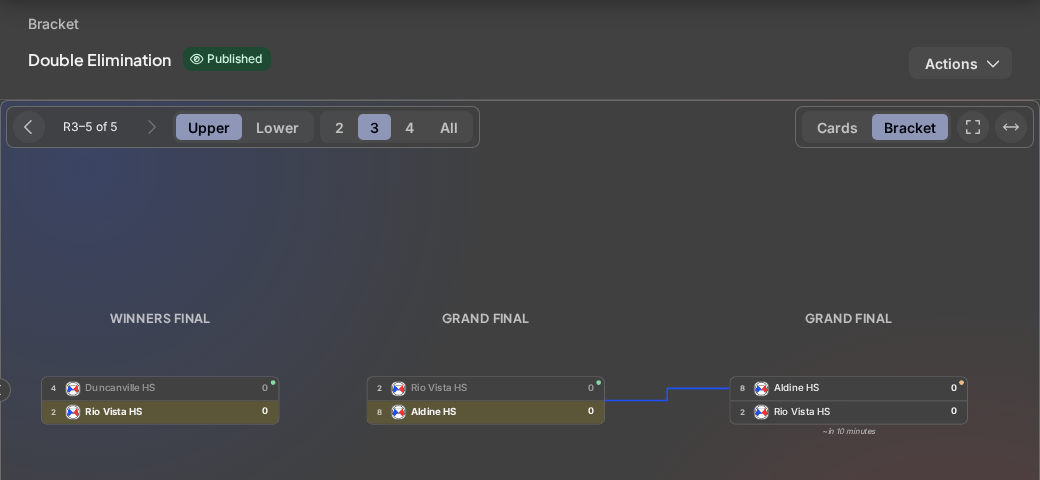
Either select the match on the Bracket tab, or open the Matches tab and search for either team. Both open the match page. In a Double Elimination bracket, the Bracket tab has Upper and Lower buttons to switch between the winners and losers sides, and a lower-bracket match names its round as Lower Round 1, Lower Round 2 and so on.
5.2 Enter a result
When a match finishes and the players bring the result to the table:
On the match page, open the match menu (the ... button) and select Moderator Actions.
On the Scores tab, pick a result:
Set Winner when you know who won the match. This is the usual choice at a LAN. Pick the team under Winner.
Force Scores when you also want the game-by-game scores recorded.
Check the What Happens panel, then select Save Result.
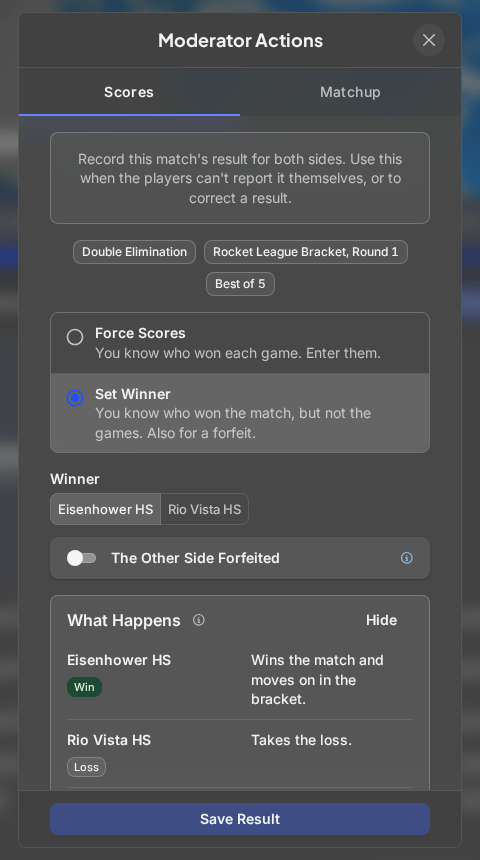
Longer finals. If your league plays some matches as a longer series than the bracket's (for example finals as Best of 5 in a Best of 3 bracket), play it out at the table and record the winner with Set Winner, which works whatever the bracket's game count.
The winner moves into the next match on its own. You don't press anything else. In a Double Elimination bracket the loser of an upper-bracket match also drops into the lower bracket on its own (What Happens only says "Takes the loss."). A loss in the lower bracket knocks the team out.
5.3 A team doesn't show up for its match
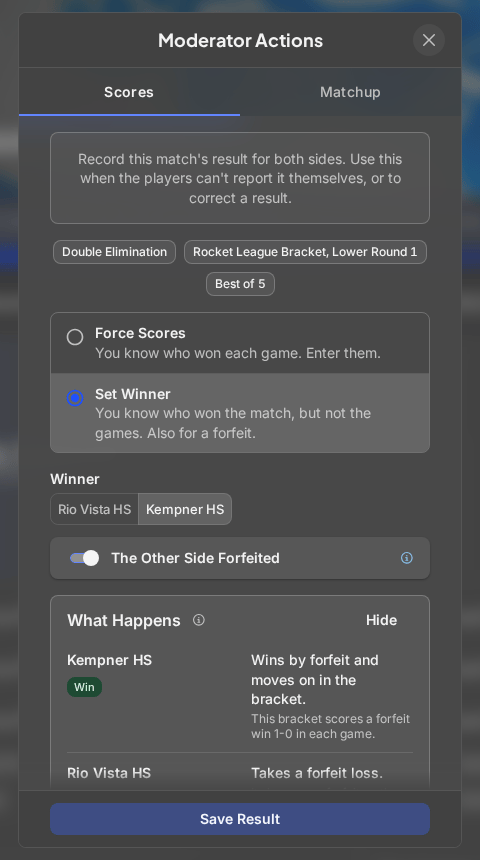
Open Moderator Actions on the match.
Choose Set Winner and pick the team that was present.
Turn on The Other Side Forfeited. What Happens shows the bracket's forfeit score (by default 1-0 in each game, so 3-0 in a Best of 5).
Select Save Result.
If neither team shows in an elimination bracket, message league staff before you enter anything: there's no way to record there that both sides forfeited. In a round robin, choose Force Tie and turn on Both Sides Forfeited.
5.4 Fix a wrong result
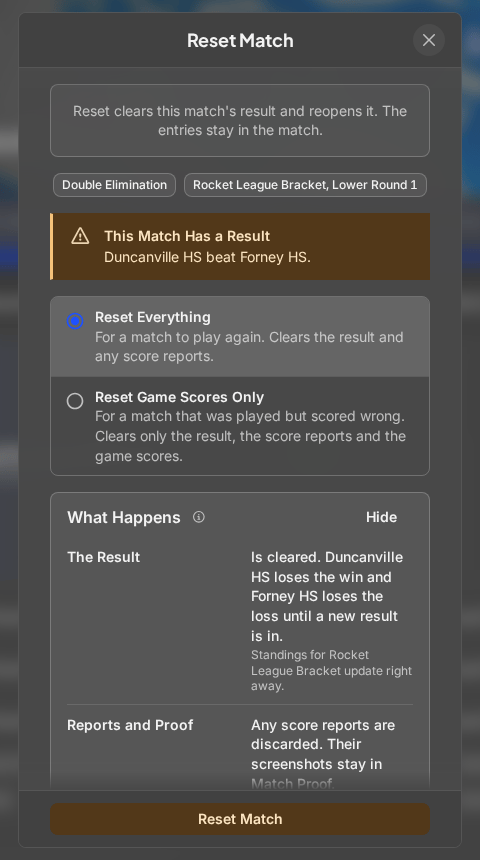
Open the match menu and select Reset Match.
Choose Reset Game Scores Only (the match was played but scored wrong) or Reset Everything (the match has to be played again), then select Reset Match.
Enter the correct result as in 5.2.
If the wrong result already sent a team into a later match, What Happens lists that match. The reset takes the team back out of it and clears any result there, so the right team is paired once you save the correct result. Check the bracket afterwards.
5.5 A team leaves mid-event
To take the team out of one match: record a forfeit with Set Winner and The Other Side Forfeited (5.3). In an elimination bracket Remove on the Matchup tab is turned off, because removing a team there would knock it out. Replace on that tab still swaps in another entry before the match is played.
To take the team out of the whole event: on its entry page, open Settings, select Withdraw Entry and tick Also forfeit its N unplayed matches now.
5.6 If players report their own scores
Players can report scores from the match page. At a LAN the admin table enters every result, so tell teams not to. If a team reports anyway, the match page shows you Review Results. Open it to Accept Their Results, or select Moderator Actions to enter a different result, which replaces the report.
5.7 The Grand Final in a Double Elimination bracket
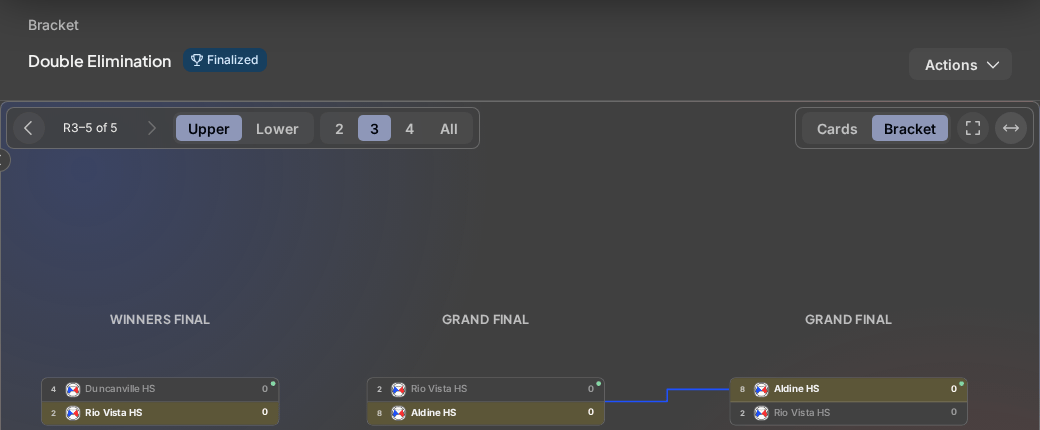
The winner of the upper bracket meets the winner of the lower bracket in the Grand Final. Enter it like any other match.
If the upper-bracket team wins, the bracket is over.
If the lower-bracket team wins, both teams now have one loss, so a second Grand Final (the bracket reset) opens on its own. Enter that result too. Its winner is the champion.
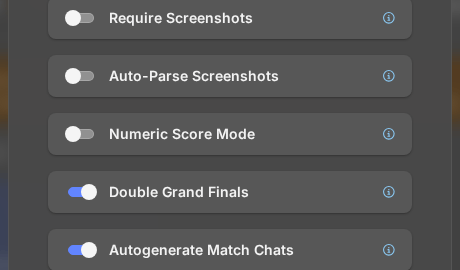
The reset is played only when Double Grand Finals is on in the bracket's settings, and a new bracket can start with it off. Before the event, check with league staff that it matches your league's rules: on for a reset, off for none.
5.8 If the bracket seems stuck
If every match in a round has a result and the next round hasn't opened, open the bracket's Actions menu and select Advance Bracket. This is a recovery and is rarely needed.
5.9 Round Robin Brackets
Some titles play a round robin instead of an elimination bracket: every entry plays every other entry once, and nobody is knocked out. Your league's LAN guidelines say which titles do. Everything up to Publish Bracket works the same. After that:
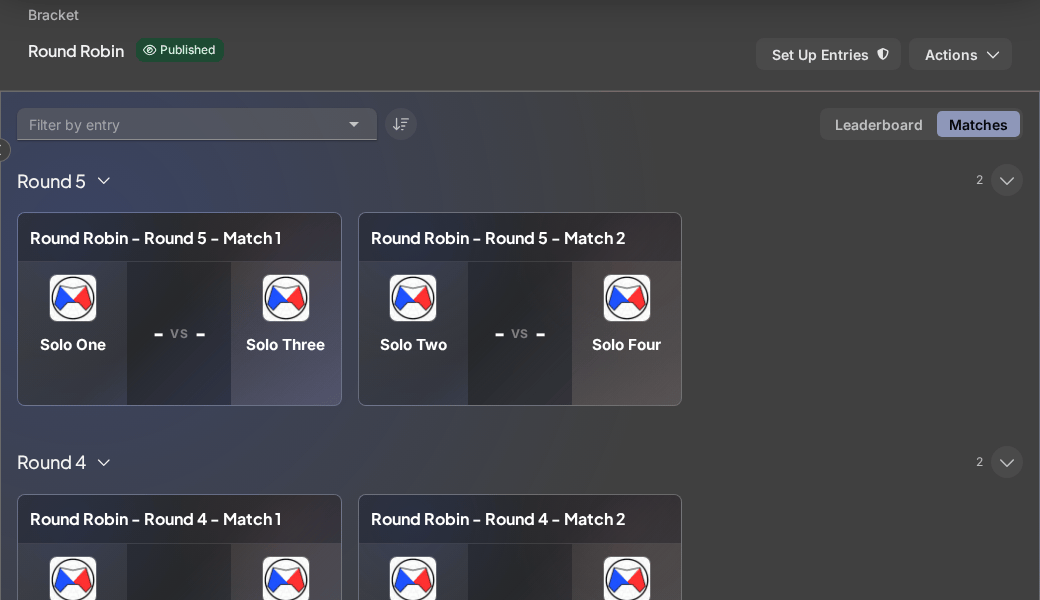
Every match is created at once. Publishing makes every round straight away (8 entries play 7 rounds of 4 matches). Call the matches round by round, Round 1 first, so no entry is asked to play two matches at the same time.
An odd number of entries means a bye. Each round, one entry sits out. By default a bye counts as a win. League staff set this before the event, so leave it as it is. Neither the Leaderboard nor the Matches view shows the bye.
Enter results the same way (5.2 to 5.4), with Set Winner or Force Scores. No one advances or drops out. Each result updates the standings.
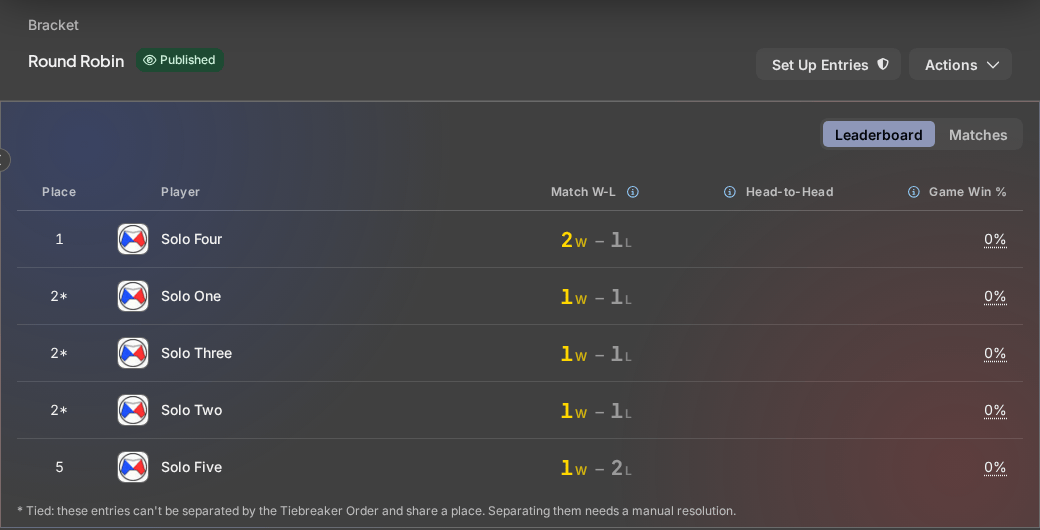
Watch the standings on the Bracket tab. Switch between Leaderboard (entries ranked by wins, then the league's tiebreakers) and Matches. Game Win % stays at 0% when you use Set Winner, because no game scores are recorded; use Force Scores if your league's tiebreakers count games.
The bracket closes on its own when the last match has a result, and the Leaderboard order is the finishing order. Use it for 6.2 instead of the elimination rules there.
The Grand Final (5.7) and Advance Bracket (5.8) don't apply to a round robin.
6. End of the Event
6.1 Finalize the bracket
An elimination bracket closes on its own when its last match has a result (in Double Elimination, the Grand Final, or the reset Grand Final when one is played): its label changes from Published to Finalized, and you're done. If yours still reads Published after the last match, open the bracket's Actions menu and select Finalize. This locks the results and closes the bracket.
6.2 Placements
For a round robin, the Leaderboard on the Bracket tab is the finishing order (5.9).
The platform does not show finishing places for an elimination bracket: the Leaderboard stays empty. Read them from the match results:
Single Elimination: 1st is the final's winner and 2nd its loser. The two semifinal losers share 3rd, the quarterfinal losers share 5th, the round-of-16 losers share 9th, and so on.
Double Elimination: 1st is the winner of the last Grand Final played, 2nd is its loser, and 3rd is the loser of the Lower Final. Then work back through the Lower side: everyone knocked out in the same lower round shares a place, so 4th, then 5th-6th, 7th-8th, 9th-12th, 13th-16th and so on.
Write them down for league staff, as far down as your league's points table goes. Don't reopen the bracket unless league staff ask you to.
6.3 Tell the league
Message league staff that the bracket is finalized. If anything happened that the results don't show (a dispute, a rule call you made, a team that left), leave a Moderator Note so staff can see it: on a match, from the match menu; on an entry, from its Settings menu.
7. Quick Reference
Situation | Where | What to press |
|---|---|---|
A team isn't registered | Entries tab | Create Entry, pick the Linked Team, Continue, Register Entry |
A player has no account | Entry page | Invite to Entry, type the name, pick the New Player row, Next, Add Them Now |
A team can't come or didn't arrive | Entries tab | Tick the row, Bulk Actions, Drop |
Build the bracket | Bracket tab | Set Up Entries, Add N Entries, Save Order, close it, then Publish Bracket |
Put a sub in | Entry page | Sub's Role box, Starter, Trade roles with, Swap |
A match finished | Match page | ..., Moderator Actions, Set Winner, Save Result |
A team no-showed a match | Match page | Set Winner, The Other Side Forfeited |
Wrong result saved | Match page | ..., Reset Match, enter it again |
A team left the event | Entry page | Settings, Withdraw Entry, forfeit unplayed matches |
Next round didn't open | Bracket tab | Actions, Advance Bracket |
Round robin standings | Bracket tab | Leaderboard |
The final is done | Bracket tab | Reads Finalized on its own (after the reset Grand Final if one is played); else Actions, Finalize |
Something to tell staff | Match or entry | Moderator Note |