
A Managed Member is a roster spot for a real student who cannot have their own account. Coaches create and control Managed Members from the team page. This guide covers when to use one, how to create and manage one, and what you do for them on match day. For the rest of the roster, see the Team Creation Guide, and for your own account see the Coach Registration Guide.
1. What a Managed Member is
1.1 A real roster member without a login
A Managed Member is a member of your school with a name, an optional picture, and game handles. You can put them on teams and register them for competitions exactly like any other student. On rosters they carry a Managed label so other coaches and organizers know who controls the account.
What they cannot do, because there is no login behind them:
Sign in to the platform.
Use match chat or receive notifications.
Link their own game accounts. You type their game handles instead.
You, as their coach, do those things on their behalf.
1.2 When to use one
Create a Managed Member for a student who:
Is under 13.
Cannot create an account because of school policy or data-privacy rules.
Has no email address they can use.
Some leagues require coaches to add every student as a Managed Member this season, and ask that students are not invited to the platform directly. Check your league's rulebook and competition announcements before you start inviting players.
1.3 Rules to keep in mind
A Managed Member should always represent one real student who can play matches on game days. Do not create them as placeholders for players you have not recruited yet.
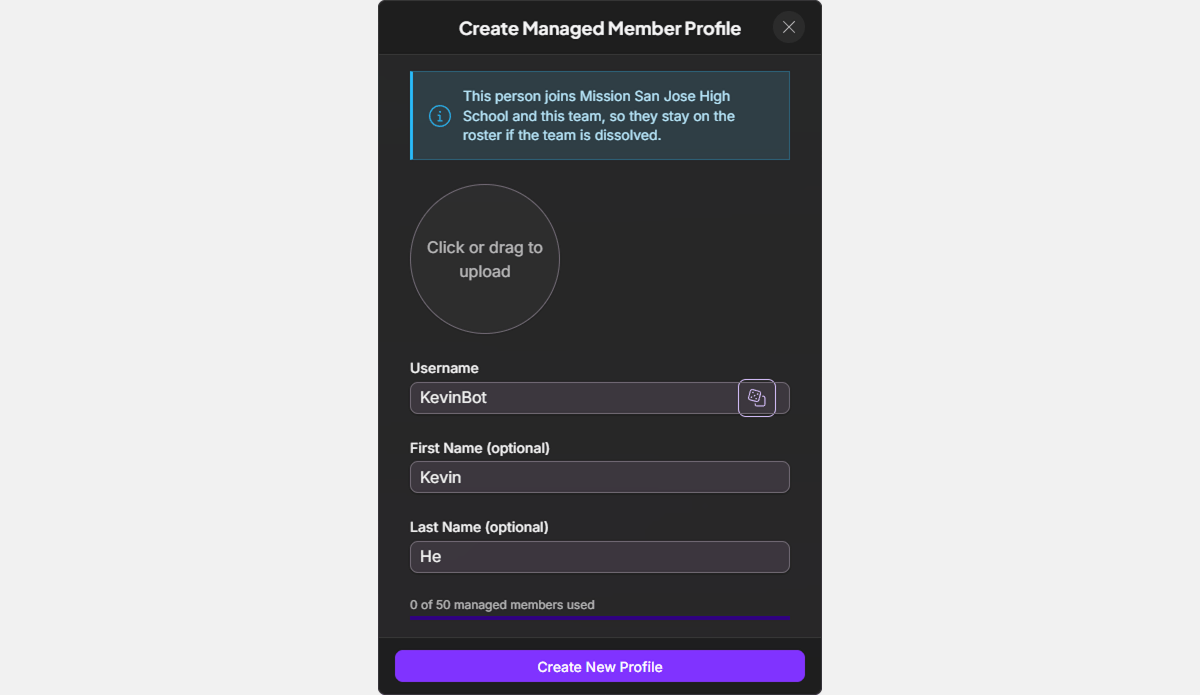
Your league sets how many Managed Members a school can have. The Create a Managed Member form shows a meter such as "3 of 25 managed members used". When your school is full, the card reads "Managed member limit reached". Ask your league if you need more.
Managed Members belong to your school, not to one team. Once created, you can add them to any of your school's teams.
A Managed Member cannot be a Team Captain or Coach on a team. Nobody can sign in as one, so the team's role menu shows those roles blocked.
Related guide: the Team Creation Guide covers the rest of the roster, including inviting students who can have their own accounts.
2. Create a Managed Member
2.1 From the team page
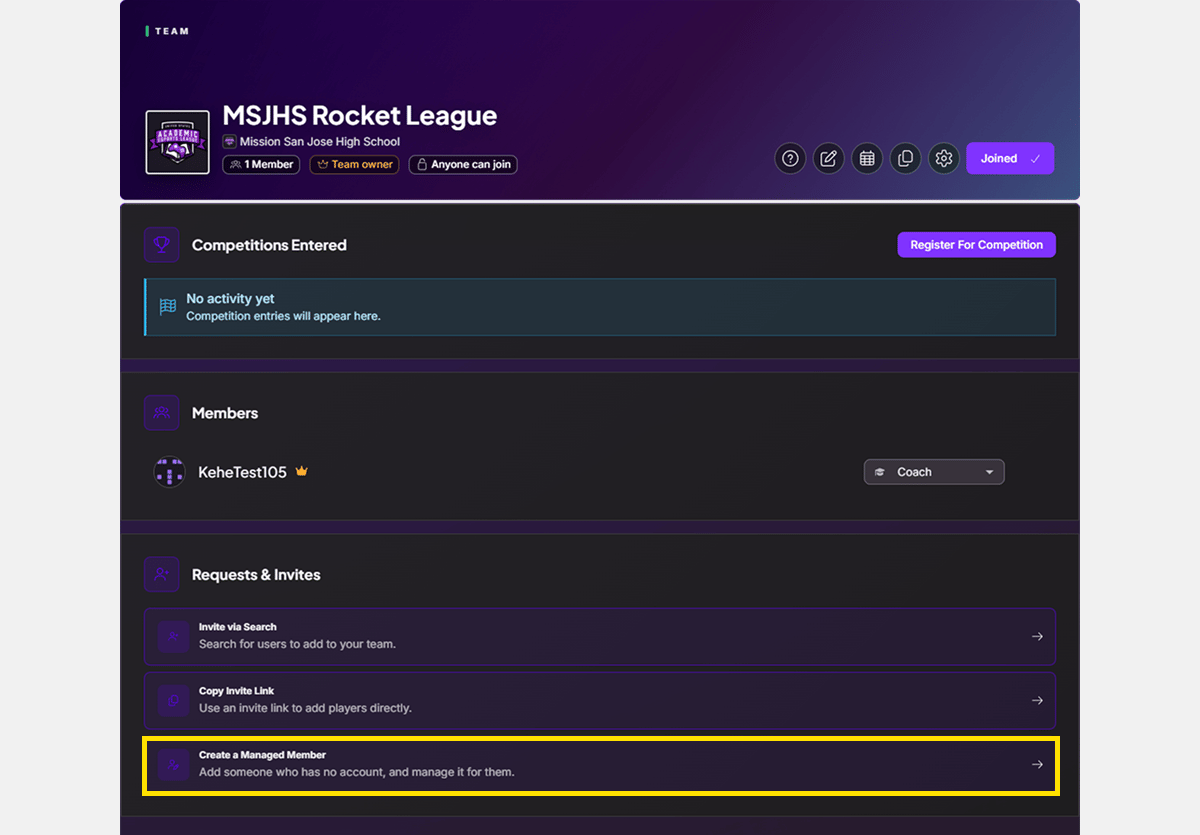
Open your team's page and find Requests & Invites.
Click Create a Managed Member.
Give them a username. You can also add their name and a picture.
Click Create New Profile.
They appear in your team's Members list right away, and in your school's member list. You can also start from the Members tab of your school page, where Add People offers the same Create a Managed Member tile. A Managed Member created there joins your school but no team yet.
2.2 While inviting by search
If you are already in the Invite via Search wizard and cannot find a student, choose Create a Managed Member on its first step. They are created and added to that invite in one step.
2.3 Naming
Name Managed Members so you can still tell who is who in March: "J. Rivera" beats "Player3". Usernames do not have to be unique, so give two students with the same name an initial or a school abbreviation.
3. Manage a Managed Member
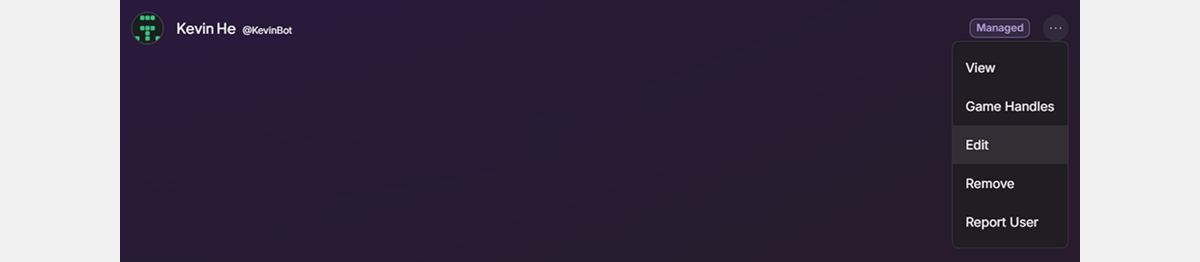
Everything below starts from the menu button at the end of the member's row in the Members tab of your school page. The member's row on your team page offers the same View, Game Handles and Edit options. Remove is only on the school page.
3.1 Edit their name or picture
Choose Edit, change the name or picture, and save.
3.2 Enter their game handles
Choose Game Handles and type each handle the student plays under. The Game Handles Guide also shows a faster path from a competition roster. Two things to know:
Handles you type are labeled "Staff-entered". Nobody signed in to prove them, so ranks and match stats do not sync for those handles.
Once a competition's registration closes, the handle for each network it requires is locked, and only an organizer can change it. An empty handle never locks, so you can still fill in a missing one. Get handles right before the season starts.
3.3 Register them for a competition
Leave them ticked on the roster step like any other member and give them a role for that entry. Most K-12 competitions allow Managed Members. If a competition does not, the roster step still lists them, marked Not allowed here, and you cannot tick them.
3.4 Match day
You act for your Managed Members:
Join the weekly queue for your entry with Join Queue at the top of the competition's Bracket tab.
In Smash Team Solos leagues that use Team Draft, make every pick for them in the Team Draft panel on the match page (see the Team Draft Guide).
Use Report Scores on the match page, and upload proof where your league requires it.
Handle Match Chat and scheduling with the opposing coach.
Your league's rulebook says exactly which of these apply, and the Match Week Guide walks through each step.
3.5 Remove a Managed Member
Choose Remove on their row. This takes away every seat the Managed Member holds, on this team and any other. Their name stays on the rosters they already played, so past results are not affected. Removing one frees a slot against your school's limit. To take them off a current entry, untick them on that entry's Roster before you remove them. On your team page, Remove From Team takes them off that team and its entries but keeps them in your school.
Removal is permanent for that Managed Member. If the student is still on your team, edit them rather than removing and recreating them.
4. When a student gets their own account
A Managed Member does not turn into a regular account. When a student becomes able to register:
Invite them with an invite link, or by search once they are a member of your school. See the Team Creation Guide.
Add the new account to the same teams and competition entries.
Remove the Managed Member. Their match history stays under the Managed Member's name.
Do this between competitions where you can. After a competition's roster lock, only league admins can change an entry's roster, so a swap then needs their help.