
This guide is for coaches, team captains and players entering a LAN event on the League Platform. At a LAN the organizer runs attendance, the bracket and the results from an admin table. Your part is to register before the deadline and show up.
Your league's LAN guidelines cover eligibility, fees, what to bring and the rules of play. This guide only covers the platform.
1. Register Your Team
A LAN entry is your school's existing online-league team. Register it the same way you registered for the season.
No team yet? Create your school's team first, then come back and register it here. The Team Creation Guide walks through it.
Open the LAN competition page for your title.
Select Register, then Create a new entry.
Read the rules and select Accept Rules.
In Choose a Team to Enter, set Team Participation to Team Captain or Team Coach (a coach doesn't count toward the roster size), then choose your team. Choosing it moves you straight on. Only a Coach or the Team Captain can do this. When your league has Limit Team Registration on, a Team Captain who's a student also needs the Student Assistant title. Without it, the team shows as closed and a coach registers it.
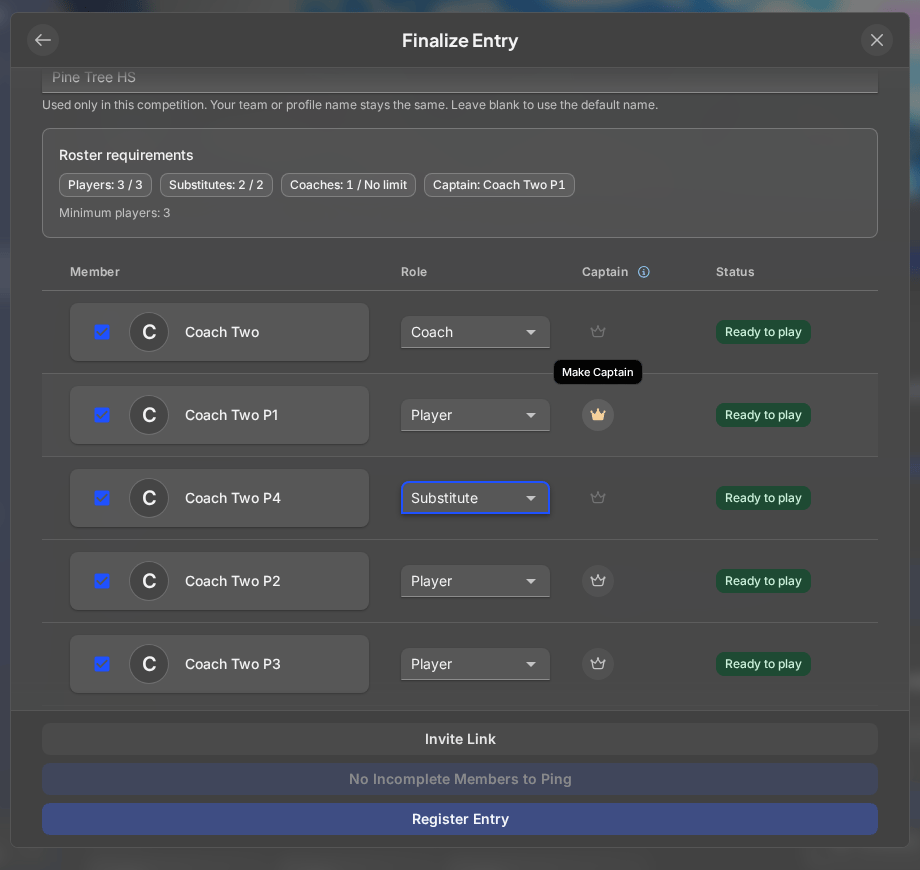
On Finalize Entry, set each member's Role: Starter for the players who start and Substitute for the subs (for Rocket League, 3 Starters and up to 2 Substitutes). A role that's over its limit is highlighted, and you can't register until the counts fit. Pick a captain with the crown button. Under Competition Name, type your school's name if your team's name isn't it. Then select Register Entry.
The button reads Registered when you're done. On your entry page, subs show as 1st Sub and 2nd Sub.
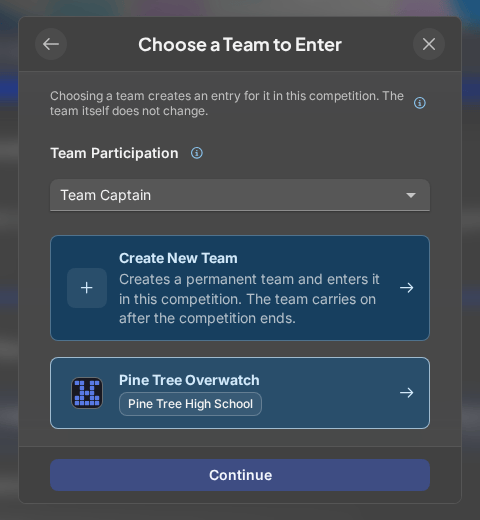
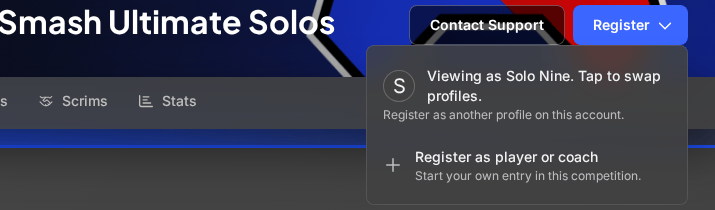
For a solo title such as Smash, select Register, then Register as player or coach, and accept the rules. If you have no team yet, Create a Team to Enter fills Team Name with your name; change it to your gamertag if they differ, then select Continue. If you already manage a team, pick it, tick the players to enter and select the Register button, which shows the count (for example, Register 1 Player). A team you don't manage is greyed out, so select Create New Team. Your entry is named after you. When your league has Limit Team Registration on, students can't register themselves for their school, and the page says so. A coach or Student Assistant registers every player from the team page instead (Team Creation Guide).
Your league may require roster changes to be approved before the event. Make them on the entry's roster, not the team page, and make them before the league's cutoff.
A player with no account. If a player on your roster has no account and can't make one before the event, tell the admin table. The organizer can add them to your entry as a new player on the day.
2. Fill Out the League's Form
The competition page links to your league's registration form. Every player on the entry has to complete it before the event. The platform doesn't collect this information itself.
3. Before the Event
Check your entry's roster is right and every player has the game handle the title requires. See the Game Handles Guide.
Watch your inbox. The organizer messages entries with room, parking and start-time details.
You won't see a bracket until event day. The Bracket and Matches tabs appear once the organizer publishes it on the day.
4. At the Event
Go to the organizer's admin table as soon as you arrive, so they know your team is here. A team that hasn't reported in when the bracket is built is dropped from the event.
Once the bracket is published, open the competition's Bracket tab to see your first opponent, or open your match page from the Matches tab.
Play your match, then bring the result to the admin table. The organizer records it, and the bracket moves you to your next match.
Don't use Report Scores on the match page unless the organizer asks you to.
If you have to leave before your last match, tell the admin table so your remaining matches can be forfeited and your opponents move on.